
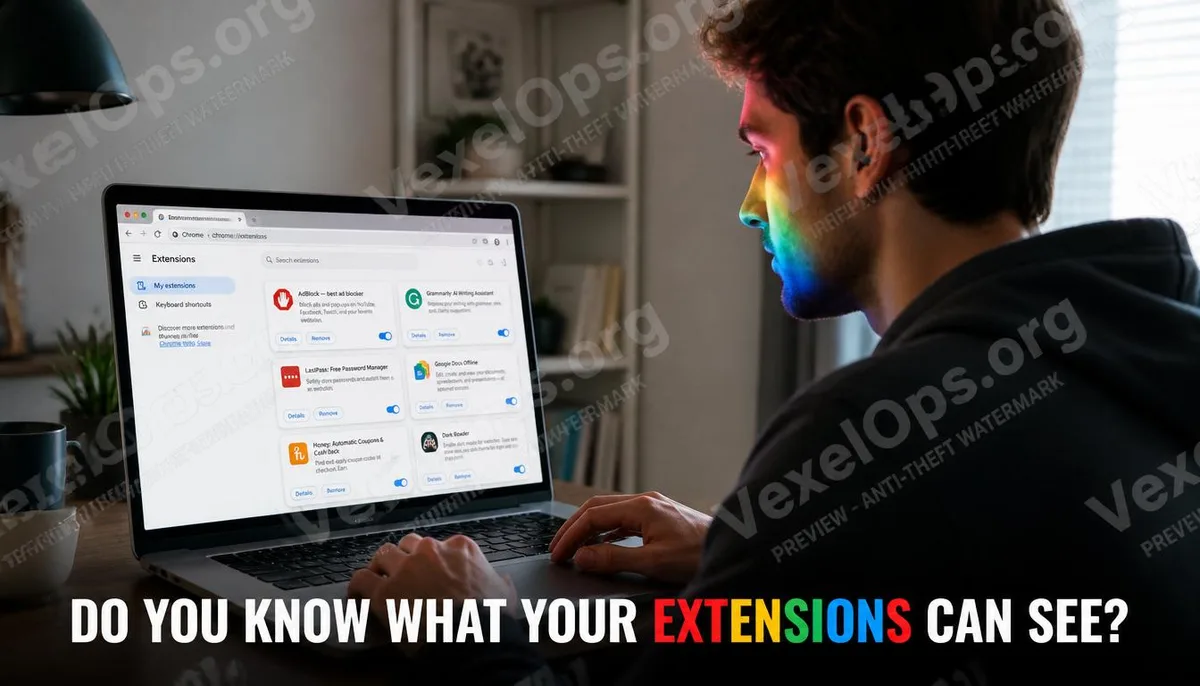
What Do You Authorize When You Click ‘Add to Chrome’?
The process of installing a browser extension is usually quick; you see a useful feature, click to add it, and it's done in seconds. However, during this process, the system displays a permissions confirmation screen that details what data and functionalities the extension is requesting access to. Most people tend to skip this screen, as it seems like just a necessary step. It is actually worth taking a moment to read this screen. The scope of permissions can vary greatly among extensions: some only need access to specific websites, while others require reading all content from every webpage you visit, including data you input in forms, text displayed on the page, and even login information stored in your browser. Once granted, these permissions continue to be in effect until you actively revoke them.
What Permissions Require Special Attention
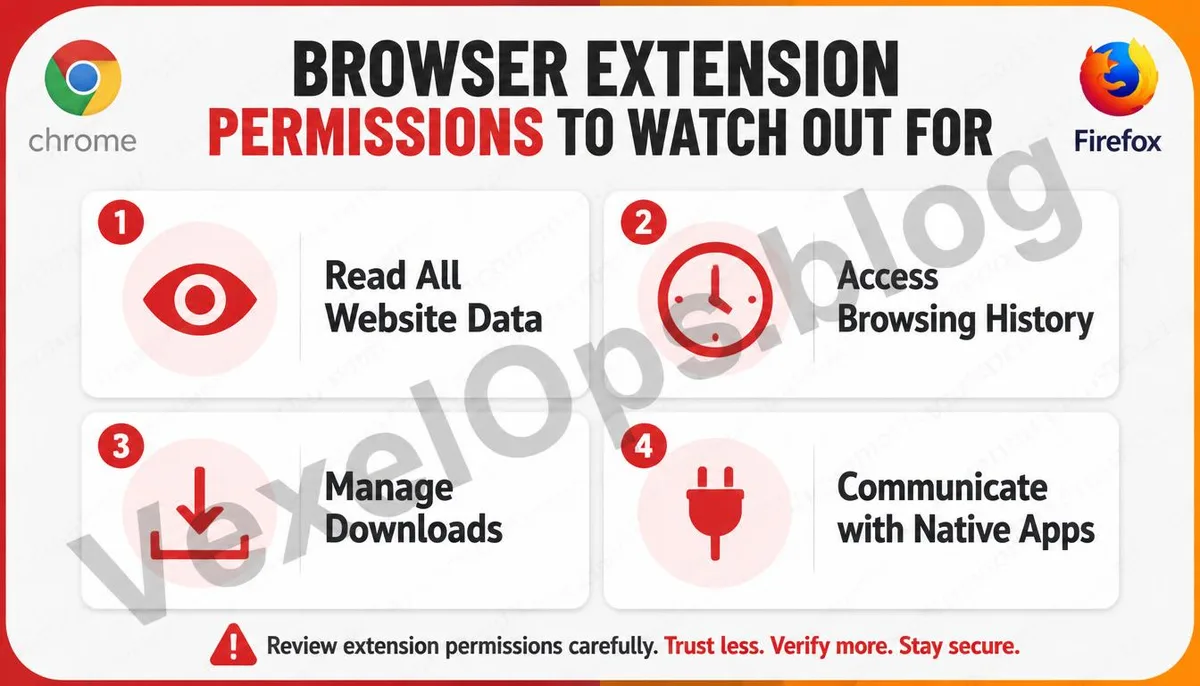
Not all permissions granted to extensions represent a risk, but there are a few categories of requests that are worth considering carefully:
- Read and change all your data on all websites: This is one of the broadest permissions, allowing the extension to read the complete content of every page you visit, including your banking sites, Gmail, social media platforms, etc.
- Manage downloads: This allows the extension to trigger or intercept downloads, which could potentially be abused under certain situations.
- Access browser tabs and browsing history: The extension can see which tabs you currently have open and the list of URLs you have visited.
- Communicate with native applications: This allows the extension to interact with programs installed on your device, a relatively advanced and higher-risk permission.
For simpler extensions, if the permissions requested are overly broad, this is itself a signal to pause and reconsider.
Risks May Change Quietly After Extensions Are Acquired or Updated
The security of an extension is not determined only at the time of installation; it can change with subsequent updates. A common situation is when a previously functioning and well-reviewed extension is acquired by another company, which may quietly include data collection or ad tracking code in a new version update. Extensions for Chrome and Firefox typically update automatically, and users may not notice if permissions expand after an update. This means that even extensions you've installed a long time ago should occasionally be reviewed for their current permission status.
How to Organize Currently Installed Extensions
Regularly checking the installed extensions in your browser is one of the basic actions for maintaining browser security. In Google Chrome, you can access the management page by entering chrome://extensions in the address bar, while Firefox uses about:addons, and Edge corresponds to edge://extensions. Once there, it's recommended to do a few things:
- Review each currently enabled extension and remove those that are no longer in use.
- Click on each extension's details to confirm its current permissions.
- For extensions from uncertain sources or those that haven’t been updated in a long time, consider temporarily disabling them to see if it affects your daily use.
- Avoid installing extensions from unofficial sources outside of Chrome Web Store or Firefox Add-ons.
This process doesn’t take much time but has a clear effect on reducing privacy risks at the browser level. If you discover unknown extensions during the organization process and also notice abnormal login records related to your account, VexelOps can help determine whether there is a correlation and provide further handling suggestions.
Common Questions About Browser Extension Security
Are all extensions listed on the Chrome Web Store safe?
Not necessarily. Google has a certain review mechanism for extensions listed on the Chrome Web Store, but this does not mean that all listed extensions are completely trustworthy. There have been several cases where an extension passed the review but later included malicious behavior in subsequent updates, or where the developer transferred the account to a third party, leading to issues. The platform's review provides a layer of protection, but it is not the only criterion for judgment; users still need to be vigilant about the scope of permissions and the credibility of the developer.
Are free extensions truly completely free?
Some free extensions operate on a business model that involves collecting user browsing behavior data and selling this information to advertising or market research companies. Such practices are often mentioned in the privacy policy, but because few people read this document closely, many users are unaware of how their browsing history is being used. Before installation, consider researching the developer's background and other users' privacy feedback as a preliminary judgment reference.
Do I need to uninstall all extensions to ensure safety?
Not at all. Extensions themselves are not synonymous with risk; many provide practical and safe functionalities, such as password managers (1Password, Bitwarden) or ad blockers (uBlock Origin). The focus should not be on entirely avoiding the use of extensions, but rather on having a basic understanding of what you install, ensuring that each tool you grant browser access to is one you consciously choose, rather than a background program you forgot about after adding it. One Key Takeaway: The risks of browser extensions do not only lie in the installation moment, but also in subsequent updates and ongoing background access. Regularly spending a few minutes reviewing your installed list is the simplest and most effective way to maintain your browser's privacy status.