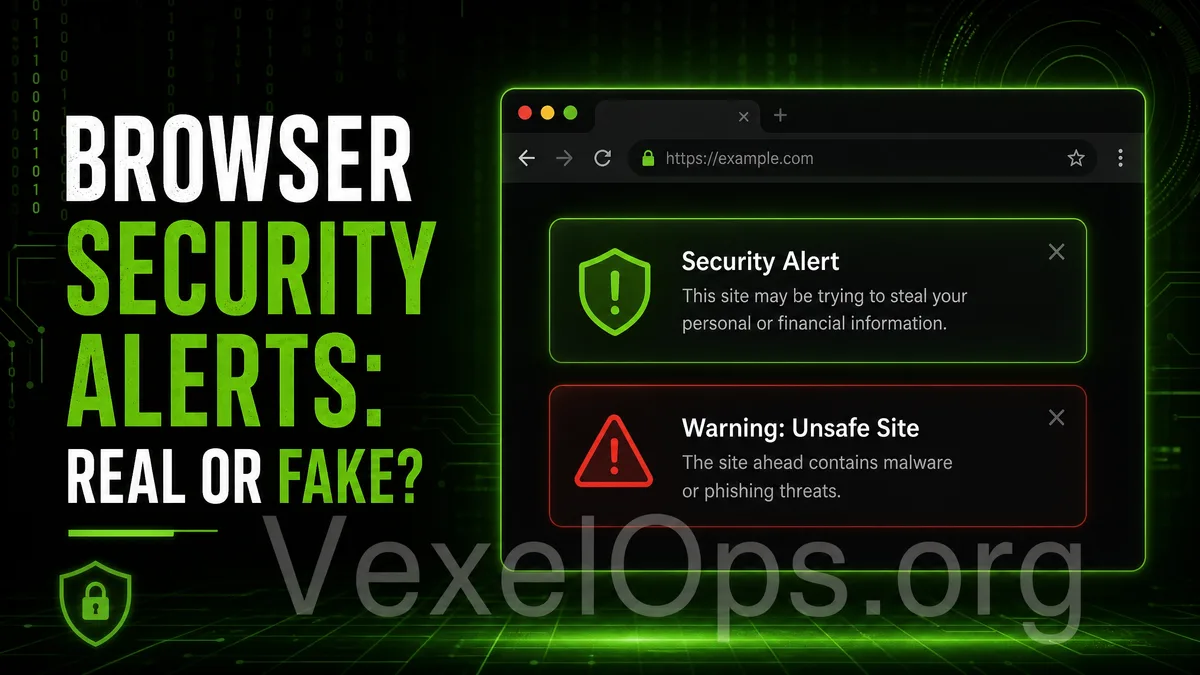
Why Does the Browser Keep Displaying Security Warnings?
Many regular users have encountered this situation: suddenly, a message pops up on their computer or smartphone browser saying things like "Your device is infected with a virus," "Your account is at risk," "Immediate system cleanup required," or "Click now to fix." These messages appear urgent, sometimes accompanied by alert icons, countdowns, or red warnings, making users believe there is indeed an issue with their devices. In reality, these notifications do not necessarily come from your system and are not always from legitimate security software. Often, it is simply that a website has obtained your browser notification permissions and continues to push fake security alerts. This risk is commonly associated with unfamiliar websites, video sites, download pages, fake lottery pages, adult content sites, free tool pages, or suspicious ad pages. Users may have only clicked "Allow Notifications" once and then started receiving a flood of pop-ups.
What Do Fake Security Notifications Typically Look Like?
Fake security notifications usually use very urgent language that leaves little time for you to think. Common contents include:
- Your device is infected with a virus
- Your data is leaking
- The system detected a high-risk threat
- Click immediately to clean up
- Your account is about to be blocked
- You need to install security tools to fix this
- Scan results show multiple dangerous items
The purpose of these messages is not to protect your device, but to lure you into clicking links, installing unfamiliar software, entering personal information, or accessing fake customer service pages. Regular users need to be particularly cautious: if the notification comes from the top right corner of the browser, mobile push notifications, or a certain website name rather than your installed security software or system settings page, you should suspect its credibility.
How to Distinguish Between Real Security Alerts and Fake Notifications?
There are several directions to assess. First, check the source of the notification. Genuine security alerts usually come from the system, official security tools, or trusted software you have installed. If the notification displays an unfamiliar website name, it likely is just a website's notification. Second, see if it pressures you to click immediately. Fake notifications often use phrases like "Fix now," "Clean up immediately," or "Otherwise, your data will leak" to create urgency. Real security tools typically provide clear sources and handling methods without rushing you with unfamiliar links. Third, check if it asks you to download unknown tools. This is a high-risk signal. Many fake security alerts guide you to download so-called cleanup tools, scanning tools, or security plugins, which may not be trustworthy. Fourth, see if it asks for your username, password, or payment details. True security alerts should not require you to provide sensitive information through unfamiliar pages.
What to Avoid When Receiving Suspicious Security Notifications If you see a suspicious notification, avoid the following actions first:
- Do not click on links within the notification
- Do not download the recommended security tools
- Do not enter your username, password, or payment details
- Do not trust countdowns or threatening language
- Do not follow remote operation instructions from unfamiliar customer service
Many scam messages are intentionally designed to make you feel that "not handling this now could lead to serious problems." But the more urgent it seems, the more you should pause and verify.
How to Handle Fake Browser Notifications?
You can process them in a relatively safe order.
- First, close the suspicious notification without clicking any buttons.
- Go into your browser settings, locate 'Site Settings' or 'Notification Permissions.'
- Check which websites are allowed to send notifications.
- Remove permission for any unfamiliar, suspicious, or unused website notifications.
- Clear unnecessary browser data such as cookies, cache, and suspicious website logs.
- Use your trusted security tools for examinations, not the tools recommended by pop-ups.
If you are unsure whether the notification is trustworthy, you can close the browser and check the status from your system settings or official security software without entering via pop-up links.
Mobile Devices Can Face Similar Issues
Many people believe these fake notifications only appear on computers, but mobile browsers can encounter them too. Especially on Android devices or when browsing unfamiliar websites, if you previously allowed website notifications, you may continuously receive fake security alerts. Fake notifications on mobile can sometimes be even more misleading as they appear to be system push notifications. Regular users can check the notification settings of the browser app to see if any unknown websites have received push notification permissions. If you notice a specific website sending strange notifications, you can directly block notifications from that site or clear its data.
Establish a Simple Judgment Habit
The most important difference between true security notifications and fake ones is not just whether the interface looks official, but whether the source is credible, the requests are reasonable, and the actions are safe. You can remember this simple principle:
Regular users do not need to understand deep technical details to reduce risks. Just keep in mind: when you see a security warning from an unfamiliar website, do not rush to click, avoid downloading unknown tools, refrain from entering sensitive information, and return to the browser or system settings to check. This can help you avoid many common scams and phishing risks. Browser notifications are not inherently bad, but if permission management is not handled properly, they can be abused by suspicious websites. Regularly checking notification permissions is a simple step to protect your digital security and personal information.