

Who Is Your Computer Talking to Right Now
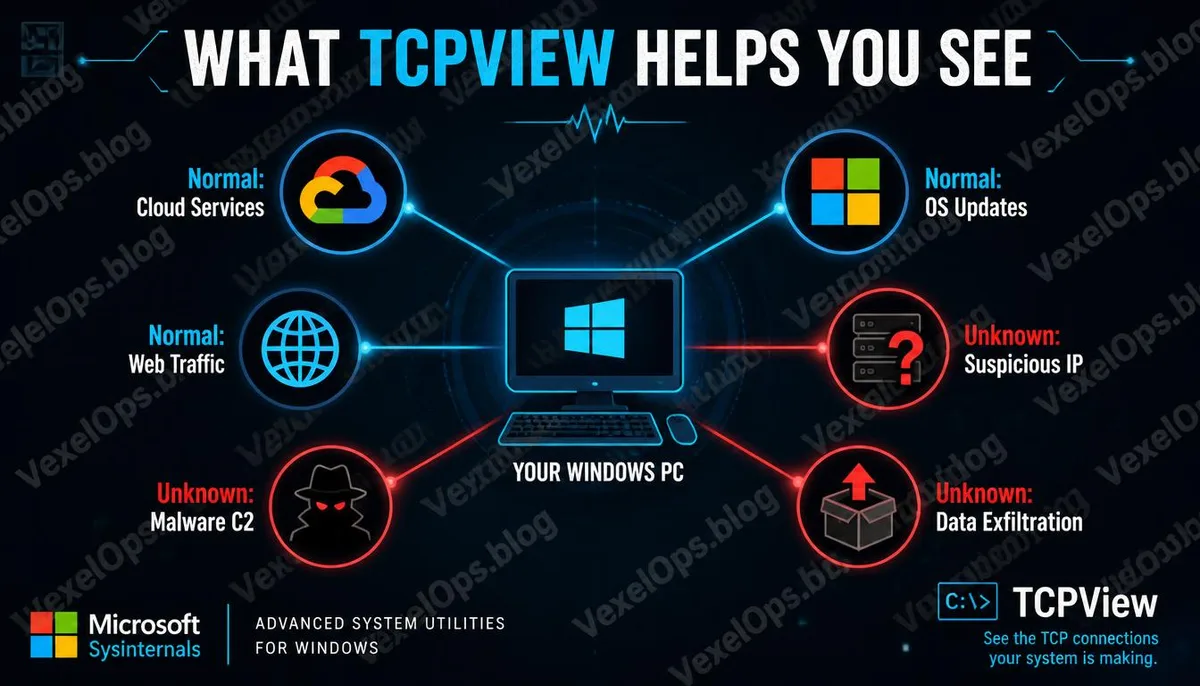
As you read this article, your computer is connected to more than one external server. Browsers, operating system update services, background applications, and cloud synchronization tools each establish their own network connections to send and receive data. In normal circumstances, these connections are harmless. However, in some cases, there may be connections you are completely unaware of, with a malicious program silently sending data to a remote control server, or software you had forgotten about still reporting your usage information in the background. TCPView’s function is to lay all of this out in front of you, making all network conversations visible.
What Information Can TCPView Display?
TCPView features a very straightforward interface, with each row representing a network connection that includes the following information: - Process: The name and PID of the program that established this connection - Protocol: The type of protocol used, either TCP or UDP - Local Address: The local IP address and port number - Remote Address: The target's IP address or domain name, as well as the target port - State: The current status of the connection, such as ESTABLISHED meaning the connection is established, LISTENING meaning it is waiting for incoming connections, and TIME_WAIT meaning the connection is closing Combined, this information allows you to clearly see which program is communicating with which external address and which port is being used.
Why Is This Tool Important in Cybersecurity Contexts?
Malware, after infecting a device, often needs to maintain a connection with external command and control servers to receive directives from attackers or transmit stolen data. Such connections are designed to be minimal and may leave no trace in obvious places within task managers. The value of TCPView becomes evident in these situations. When you see an unfamiliar program name maintaining a stable connection with a strange external IP address, especially if that connection exists without you actively running any programs, it signals that further investigation is warranted. Cybersecurity professionals typically launch TCPView as one of the first tools when dealing with suspected infected devices, as it quickly provides a real-time snapshot of network activity, offering a clear starting point for subsequent analysis.
How Regular Users Can Use TCPView
TCPView can be downloaded directly from Microsoft’s official website; it is portable and does not require installation. Once launched, the screen displays all current network connections in real-time, with new connections highlighted in green and recently closed connections briefly appearing in red before disappearing. For regular users, the following observations are most practical: Check Unfamiliar Remote Addresses If you see a remote address for a connection that you completely do not recognize, you can copy that IP into a browser or use an IP lookup service to determine to which organization it belongs. Most normal connections will point to Google, Apple, Microsoft, Cloudflare, or your service provider. Monitor Active Connections While Idle After closing all applications, observe which connections remain. Under normal circumstances, an idle computer should have only a few system-level connections active. If you find unknown programs maintaining a lot of active connections, it deserves further investigation. Cross-Reference Process Names with Installed Software The process names displayed by TCPView can be cross-referenced with Task Manager or Autoruns to
Common Questions About TCPView
What is the Difference Between TCPView and netstat Command?
netstat is a built-in command-line tool in Windows that can also display network connection information, but it produces a static text list that requires manual re-execution to update. TCPView offers a real-time updating graphical interface that makes it easy to see dynamic changes in connection status, and to identify the specific processes corresponding to specific connections. For users not accustomed to command-line interfaces, TCPView is much more intuitive to operate and more efficient when you need a quick overview of network activity.
Does Seeing Many LISTENING Connections Mean My Computer Has a Problem?
Not necessarily. LISTENING status means a program is awaiting incoming connection requests, which is standard for many legitimate services, like local development servers, remote desktop services, or certain peer-to-peer functionalities. What needs further confirmation is whether the listening program is recognized software and if the ports it is listening to are reasonable. If an unfamiliar program is monitoring an unusual high port, it is worth deeper investigation.
Can TCPView Block Suspicious Connections?
TCPView itself is an observational tool and does not provide blocking capabilities. If you need to terminate specific connections or prevent a program from establishing a network connection, you will need to set rules with the Windows Firewall or use security software with network control functions. The purpose of TCPView is to help you see what is happening; how to handle it will depend on the situation and may require other tools or further assistance.
What Other Sysinternals Tools Are Worth Knowing?
The Microsoft Sysinternals toolset includes over seventy tools, several of which are frequently mentioned in cybersecurity contexts. Process Explorer is an advanced Task Manager, Process Monitor records real-time behaviors of processes, Autoruns shows all auto-start items, TCPView monitors network connections, and Strings extracts readable text from binary files. These tools cover different analytical angles, and using them in conjunction can provide a comprehensive view of system behavior.
One Key Takeaway: TCPView reveals not some mysterious hacker technology, but the things that happen on your computer every moment, which no one has ever told you about—those network connections silently operating in the background become completely transparent for the first time.