

Deleting Photos Is More Complex Than You Think
Many people's first instinct when deleting a photo is: "Pressing delete = completely gone." But in iPhone, Android, iCloud, and Google Photos systems, deletion is not a singular action but instead a sync operation that affects multiple places. What you see is just the disappearance on your phone's screen, but behind it could be cloud backups, synchronization to other devices, recovery bins, or even historical versions that were once backed up. So the same photo might be deleted in one place but still exist in another.
Key Differences Between iCloud and Google Photos: Sync vs. Backup
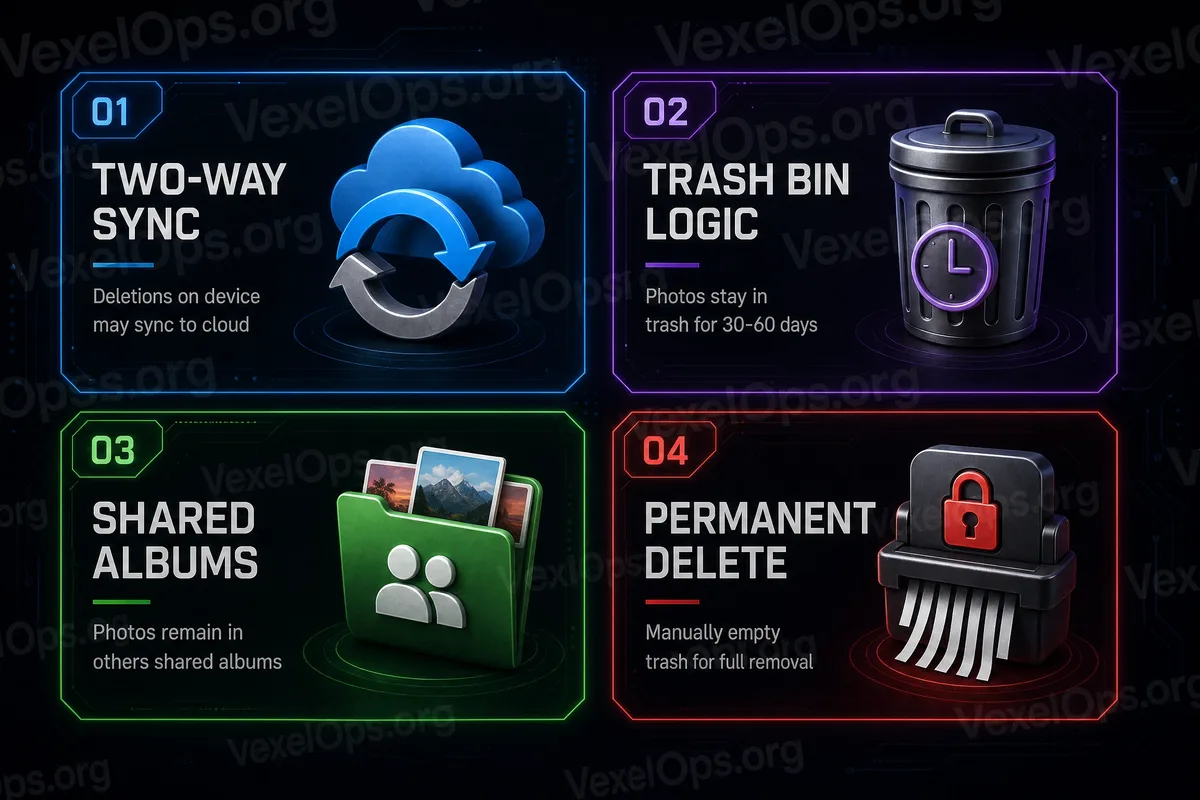
To understand where your photos go, you first need to clarify the logic of these two systems. iCloud (especially iPhone Photos) leans more towards "synchronization". This means your photos remain consistent across different Apple devices. If you delete a photo on your iPhone, it usually also gets deleted from iCloud and other devices signed in to the same Apple ID. Google Photos, on the other hand, leans more towards "backup". It uploads photos to the cloud, creating a cloud copy. When you delete a photo from your phone, if you haven’t set anything special, it may only delete from the local storage, while the cloud might retain the backup. This difference often leads many to mistakenly think, "If it's gone from my phone, it’s also gone from the cloud," but that is not necessarily true.
The Most Overlooked Aspect: Recovery Bins
Almost all cloud services have a "recovery bin" or "recently deleted" feature. For example: - iCloud's "Recently Deleted" - Google Photos' "Trash" - Android photo album recovery folder - Third-party clouds (Dropbox, OneDrive, etc.) Deleted photos usually do not disappear immediately, but rather enter a recovery mechanism and are retained for a period (e.g., 30 days or longer) before being permanently removed. This design is intended to prevent accidental deletions, but it also means the data doesn’t vanish instantly.
Multi-Device Sync Can Make Deletion Feel More "Scattered"
Many people now use multiple devices simultaneously: iPhone + iPad + Mac Android Phone + Windows PC Logged into the same Google / Apple account As long as one of these devices is still online, the deletion action may sync to other devices, and may also update at different times. Sometimes you delete a photo on your phone, but it still appears on your computer; or you delete it on your computer, but it's still cached on your phone. This isn't a case of not having deleted properly, but rather that syncing takes time or is affected by settings.
Backups Are the Most Overlooked Key
More easily misunderstood than synchronization is "backups". Many phones automatically back up: - iCloud Backup - Google Drive Backup - Google Photos Backup - WhatsApp Backup (including media) - LINE migration backup If a photo has been backed up, even if you delete it from both the local and cloud albums, some backup versions may still exist. This is also why some people find their old photos "reappearing" after changing phones, as the system restores backup data rather than the real-time state.
Why Do Many People Misunderstand "Photos Are Deleted"?
Mainly for three reasons: The first is that the UI design is too simplistic, making it unclear for users to see the cloud processes. The second is that behaviors differ across platforms (iCloud vs. Google Photos), leading to confusion. The third is that the recovery bin mechanism makes "deletion" feel like a delayed action. Therefore, just because you don't see it right after deleting, doesn't mean the entire system has removed it already.
The Core of Digital Privacy Is Not Deletion, But "Control Over What Exists Where"
In today's cloud environment, a more accurate understanding is: Deletion does not make data disappear; it makes it leave your currently visible area. If you want to truly control your photos, you must know where they might still exist: - Local phone - Cloud albums - Recovery bins - Backup files - Other logged-in devices As long as one remains, it indicates that data has not completely left the system.
Steps to Reduce Photo Residual Risks
No technical expertise is required, but you can develop good habits: Check "Recently Deleted" or "Trash" after deleting Verify whether iCloud / Google Photos backup is enabled Be aware of multiple devices logged in with the same account Avoid automatically syncing all photos to all services Regularly organize cloud albums and backup settings The focus is not on completely avoiding the cloud, but on knowing where your data is.
The True Meaning of Photo Deletion: Organization Rather Than Disappearance
Many people have a misunderstanding about "deletion": that pressing it means it will disappear forever. But in modern mobile and cloud systems, deletion is more like a "state of organization" rather than a physical wipe. Understanding this helps you realize which data is present in the cloud, which is still in backups, and which is just temporarily invisible. This knowledge is more important than blind deletion.