
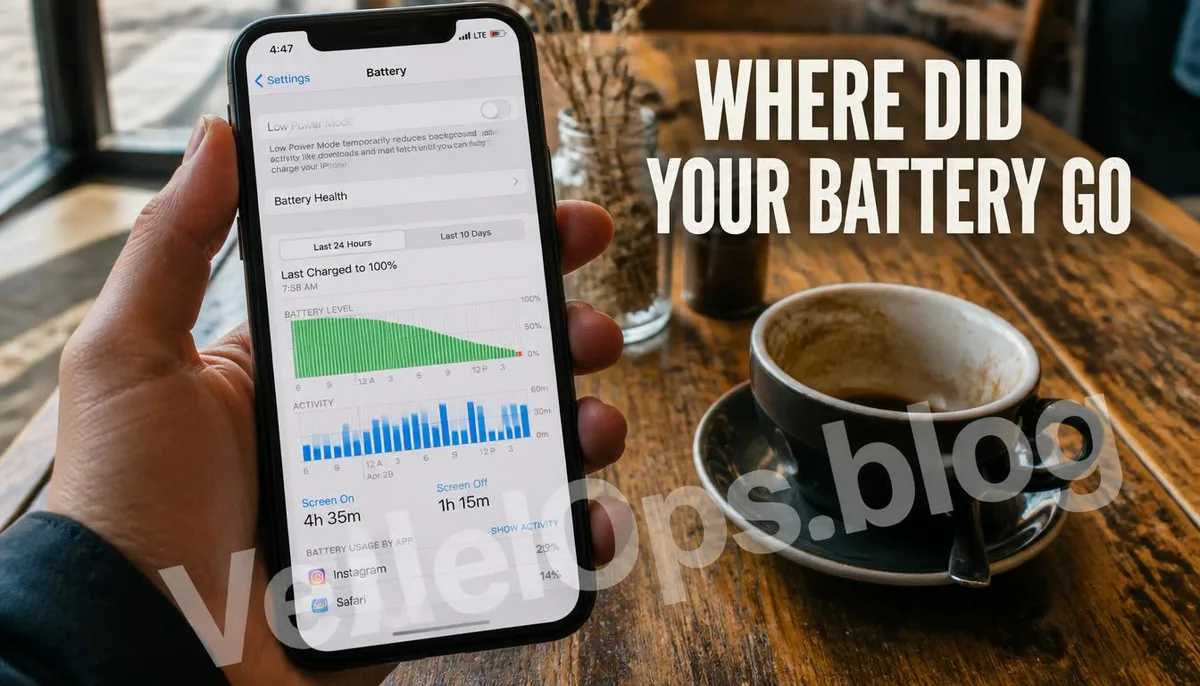
If Your Battery is Draining Faster than Normal, Don't Rush to Replace It
You may leave home with your battery at 80%, only to find it at 30% by noon. This situation often leads to immediate suspicions of battery aging, prompting thoughts of replacing the battery. However, this sudden increase in power drain often has specific identifiable reasons and may not necessarily indicate a battery problem.
Check the Basic Status of Your Battery Health
Open Settings, go to Battery, and choose Battery Health & Charging. Here you'll see the current maximum capacity percentage, which represents how much battery remains compared to a brand new state. If this number is noticeably low, such as dropping below 80%, it may indeed indicate battery aging and diminished longevity, and you may need to consider repairs or replacement. If the maximum capacity looks normal, the issue likely lies with your usage habits or specific apps, and it's time to check elsewhere.
The Usage Analysis Feature Can Directly Identify the Culprit
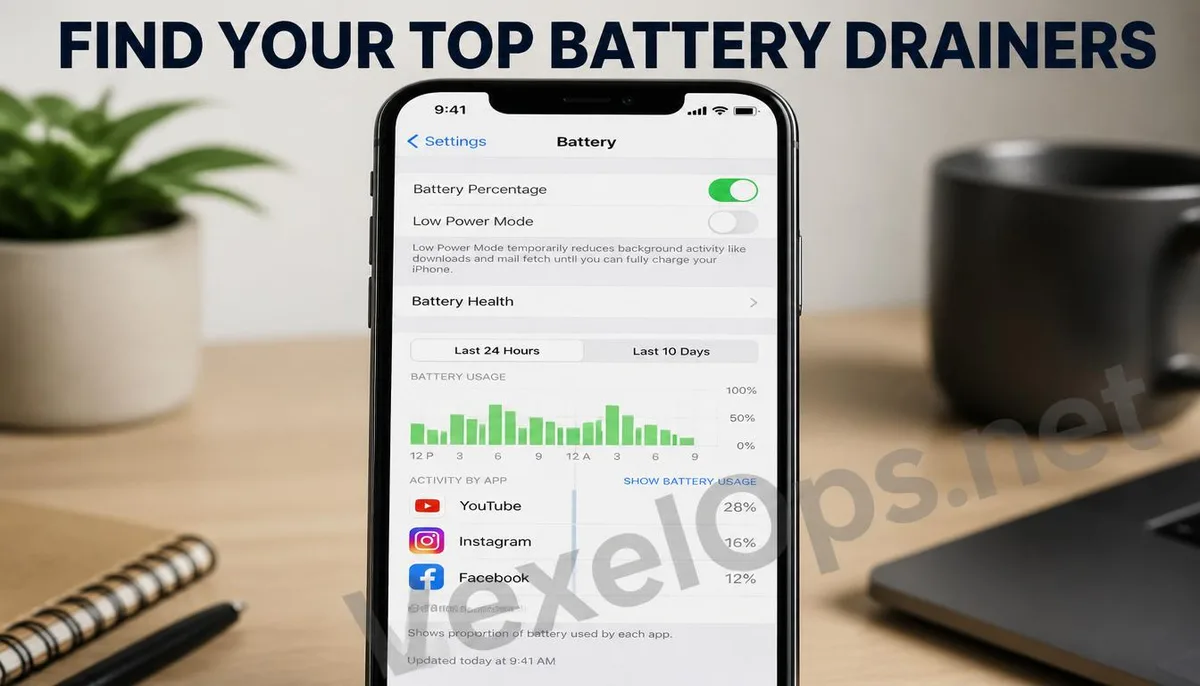
Return to the main Battery page and scroll down to see the usage analysis chart for the past 24 hours or the past 10 days. Below this chart, you'll find a list of the battery consumption percentages for each app, sorted by power consumption. It's easy to see who the main suspects are. Clicking into any app's details will show its power usage, divided into screen time and background time. If an app is not used much but has an unusually long background usage time, it often indicates that this app is continually performing some activities in the background, such as updating data or receiving push notifications. You should check if these high background execution privileges are necessary.
Common Yet Overlooked Power-Consuming Settings
Besides the app usage itself, there are several system settings that often serve as invisible power consumers. - Background App Refresh: This feature allows apps to update content in the background, even when they aren't opened. Go into Settings, select General, then Background App Refresh, where you can inspect and disable unnecessary apps one by one. - Location Services Constantly On: Especially for apps set to always allow, this causes the GPS chip to operate for an extended time. In Privacy & Security, check which apps are set to always allow and change them to allow while using the app to significantly reduce power consumption. - Screen Brightness and Auto-Lock Time: The screen is one of the main power consumers of a mobile phone. Shortening the auto-lock timeout and appropriately lowering the brightness can directly help extend battery life. Apple also provides a more comprehensive battery care guide on its official battery support page.
Common Questions Users Ask About iPhone Battery Drain Issues
If the Usage Analysis Doesn't Show Obvious Power-Heavy Apps, What Could Be the Reason?
If the battery usage analysis shows each app's percentage is relatively average without any particularly outstanding abnormalities, consider checking if you have recently updated the iOS system version. In the days immediately following a system update, the device often performs background tasks such as index rebuilding, which may temporarily cause increased power consumption. This situation typically returns to normal after a few days without needing special handling. Additionally, check the signal status. If the signal is weak in your environment, the phone chip will consume more power to maintain connections. In such cases, using the phone in an area with better signal usually results in a noticeable improvement in battery drain.
Will Enabling Low Power Mode Affect Normal Phone Use?
Low Power Mode primarily extends battery life by reducing the frequency of some background activities, such as decreasing the frequency of automatic email fetching and minimizing certain visual effects. Core functions like calling, messaging, and web browsing aren't affected. The most noticeable differences are that Background App Refresh and some automatic download features are temporarily turned off. If you don't mind these secondary functions being paused, enabling Low Power Mode is an effective way to extend a single charge, and you can manually disable it once the battery reaches a certain level.
The Battery Health Shows Normal, But the Phone Still Feels Inefficient; Are There Other Checks?
If you've ruled out abnormal app power consumption and system setting issues, and the battery health is within normal ranges, observe if there have been any changes in your phone's actual usage scenarios, such as often using it in extreme temperature environments. Overheating or extreme cold can temporarily reduce the battery's actual output efficiency. This situation usually improves once the device returns to a suitable temperature and does not indicate permanent battery damage.
One Key Takeaway: If your iPhone's battery drains suddenly faster than usual, first check the battery health to confirm the state of the battery. Then use the usage analysis feature to find out which apps are consuming the most power. Adjusting the background app refresh and location service settings can often effectively improve battery life.