
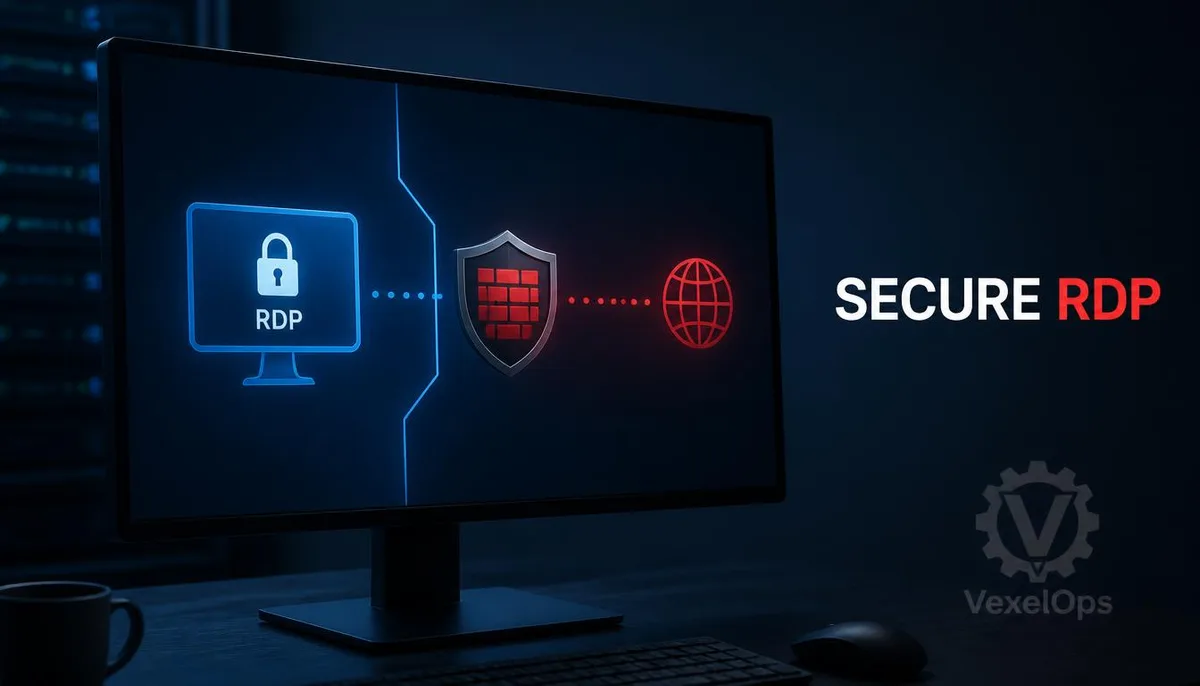
What is RDP? Why is it Easily Targeted After Opening?
RDP, or Remote Desktop Protocol, allows users to operate a Windows computer from another device and is commonly used for remote management, enterprise maintenance, and technical support. It provides login services, creates remote work sessions, and may allow clipboard, drive, printer, or other resource redirection. The problem isn't that RDP itself is inherently unsafe, but rather that if the service is directly exposed to the internet, anyone can see the connection entry and continuously attempt to log in. Weak passwords, reused passwords, outdated systems, overly permissive firewalls, and the absence of multi-factor authentication can further increase the risks. An RDP intrusion doesn't necessarily mean that an attacker has taken full control of the computer. It could simply indicate failed login attempts, or it might mean that an account has successfully established a remote work session. Therefore, the first step is not to immediately delete all logs but to distinguish between failed attempts, successful logins, abnormal sessions, and any subsequent activities.
How to Confirm If RDP is Open?
In Windows, you can check if Remote Desktop is enabled from the settings or system properties. The version and interface of Windows may vary, but common paths are found in system settings under Remote Desktop or in the traditional control panel under Remote settings. If a user does not require remote access, they should turn off Remote Desktop and simultaneously check for any relevant rules in routers, VPNs, remote management tools, and firewalls. Website administrators or system admins should not only look at the switch within Windows but also check the boundary firewalls, cloud security groups, router port forwarding, and inbound rules on the host itself. Even if the RDP service is running, its exposure level may differ if it's not open to untrusted networks. Don't treat changing the default port as a complete protection method. Altering the port can reduce some automated scanning but cannot substitute source restrictions, VPNs, strong authentication, updates, and event monitoring. The core of protection is ensuring that unauthorized sources cannot directly access the login service and that every remote access can be identified and tracked.
How to Check RDP Login Events?
If you suspect that the Remote Desktop has been invaded, you can start by checking the Windows Logs within the Event Viewer under Security for events related to logins and remote sessions. Common areas to check include successful logins, failed logins, account logouts, special privilege assignments, and new services created. The event numbers and log content may vary depending on the Windows version, auditing policies, and environment, so do not rely solely on a single event to assess the entire situation. When checking, record the time, account name, source location, login type, session duration, and any other abnormal activities that occur at the same time. The geographic location of the source IP is not absolute evidence, as cloud hosts, VPNs, proxy services, and corporate networks can skew location assessments. What truly requires attention is whether the source aligns with typical management behavior and whether new accounts, scheduled jobs, services, or antivirus shut-down records appear post-login. You can follow this sequence for an initial check:
- First, save the event logs, suspicious IPs, account names, and time range; do not clear the logs immediately.
- Compare if successful and failed logins are concentrated on the same account or source.
- Check for unfamiliar remote sessions, admin accounts, services, scheduled jobs, or software.
- Verify whether antivirus, EDR, Windows Update, and the firewall have been disabled or modified.
- If unauthorized successful logins are confirmed, immediately isolate the host and use a trusted device to manage the account.
What are the Key Protection Settings for RDP?
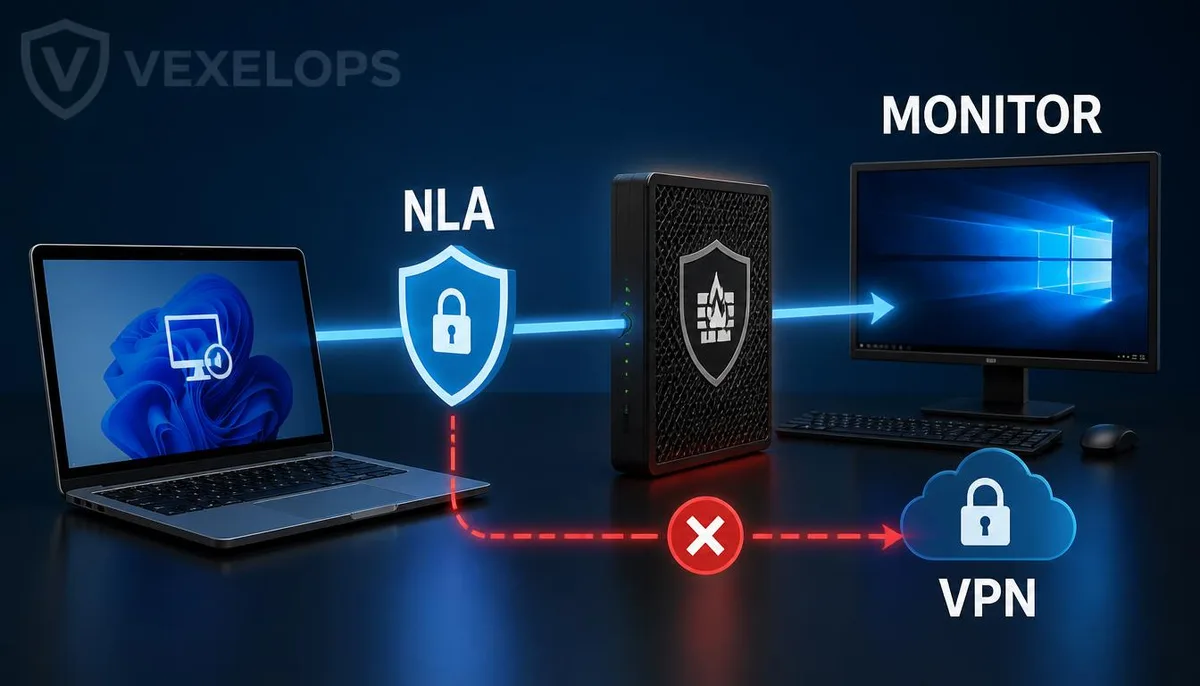
The first layer is to reduce network exposure. If RDP is only needed within company or home networks, source segments should be restricted through firewalls to prevent direct connections from the entire internet. Remote workers can use managed VPNs, zero-trust network access, or other controlled gateways, with internal policies determining which users can connect to which hosts. The second layer is to enable Network Level Authentication (NLA). NLA completes authentication before establishing a full remote desktop work session, reducing the risk of unauthenticated connections entering sessions directly. Microsoft's official documentation on Remote Desktop lists NLA as an additional layer of security for remote connections. Before enabling, ensure that all necessary client and operating system users support it to avoid denying access to legitimate administrators after changing the settings. The third layer involves account and permission management. Avoid allowing everyone to share the same administrator account and do not let users without management privileges log in directly with high-privilege accounts. Create dedicated accounts for remote access, set unique long passwords,
What to Do If RDP is Suspected to be Invaded?
If you only see a lot of failed logins, first save the logs and enhance source restrictions, password strength, and MFA; do not assume that the host is compromised due to a few failed attempts. If there are unexpected successful logins, admin privilege changes, abnormal file activities, remote tool installations, antivirus shut-downs, or ransom notifications, treat the incident as a possible security breach. In handling the situation, start by isolating the impacted host from the network, but do not rush to format or delete files before preserving necessary evidence. Use another trusted device to change potentially affected account passwords, revoke suspicious session and remote access permissions, and notify your organization’s IT or security personnel. If company data, customer data, financial services, or legal obligations are concerned, handle the matter according to the organization’s incident reporting procedures. If attackers may have gained admin privileges, do not consider the situation resolved by just deleting one suspicious file. You need to check for persistence mechanisms, services, scheduled tasks, startup items, other accounts, network connections, endpoint
Common Questions About RDP
Does Changing the RDP Port Prevent Intrusions?
No. Changing the port can only reduce the visibility of some automated scans and does not fix weak passwords, outdated systems, account leaks, incorrect firewall rules, or existing malicious sessions. Attackers may still find new connection points through scanning or other clues. A more complete approach is to first disable unnecessary RDP or restrict connections to only allow VPNs, controlled gateways, and specified sources, then enable NLA, MFA, strong passwords, account locking, updates, and login monitoring. Port changes can only serve as auxiliary settings, not the main line of defense.
Does Seeing Many Failed RDP Logins Mean the Computer Has Been Compromised?
Not necessarily. Automated scans and login attempts on the internet are common; failed events only indicate that someone has attempted to log in and do not prove that control of the host has been gained. You should still check for successful logins, abnormal accounts, unfamiliar services, and file activities. If RDP is directly exposed to the internet, it is recommended to first restrict inbound sources or disable the service, and then check for password reuse on accounts, whether MFA is enabled, and if system and remote desktop components are up to date. Saving event times and source data helps in subsequent assessments and reporting.
How Should I Set Up Remote Desktop for a Home Computer?
Start by confirming whether you really need to connect back to your home computer over an external network. If it's just occasional use, you can turn off RDP when not needed; if necessary, avoid forwarding the RDP port to the entire internet and instead use a VPN or controlled remote access solution with MFA that only allows your devices and necessary accounts to connect. Also enable NLA, set a unique long password, turn on automatic updates, restrict firewall sources, disable unnecessary drive and clipboard redirection, and regularly review login events. If you notice unfamiliar successful logins or account settings being modified, first isolate the computer, then use a trusted device to change passwords and check other accounts.
One Key Takeaway: RDP protection focuses first on reducing exposure, then strengthening authentication and monitoring.