
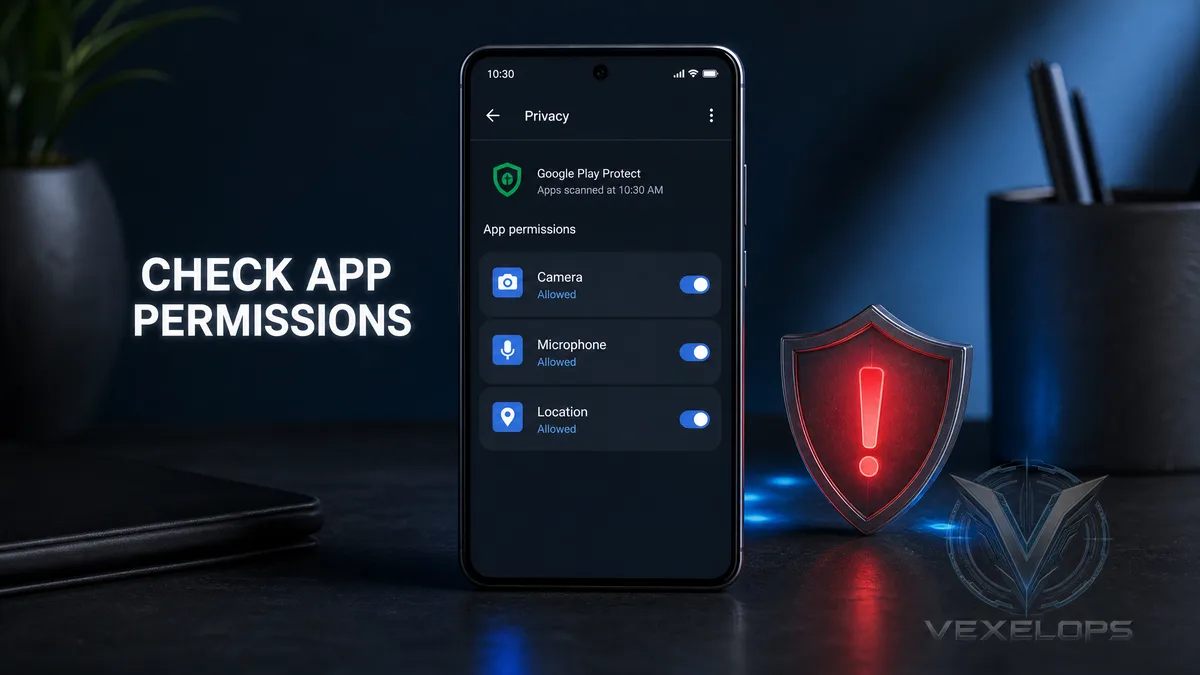
What Abnormal Phone Behaviors May Be Related to Malicious Apps?
A slow phone, accelerated battery drain, overheating, increased mobile data usage, frequent pop-up ads, or unfamiliar notifications may raise suspicion that a device has malicious apps installed. However, these issues could also stem from system updates, battery aging, background synchronization, unstable network signals, or normal app errors, so one symptom alone should not lead to conclusions. A more reliable way to assess the situation is to check the abnormal phenomena against the app names, permissions, recent installation times, battery usage, and network activity together. If an unfamiliar app lacks reasonable functionality yet requests continuous access to location, microphone, camera, notifications, or accessibility services, unnecessary permissions should be revoked first, followed by verification of its source and purpose. Suspicious apps may not immediately display obvious warnings. Some programs might masquerade as tools, cleaning apps, players, wallpapers, or update components. Installing from official stores does not guarantee safety; using unofficial files, unfamiliar links, or unknown installation packages typically increases risk.
How to Check App Permissions and High-Risk Settings?
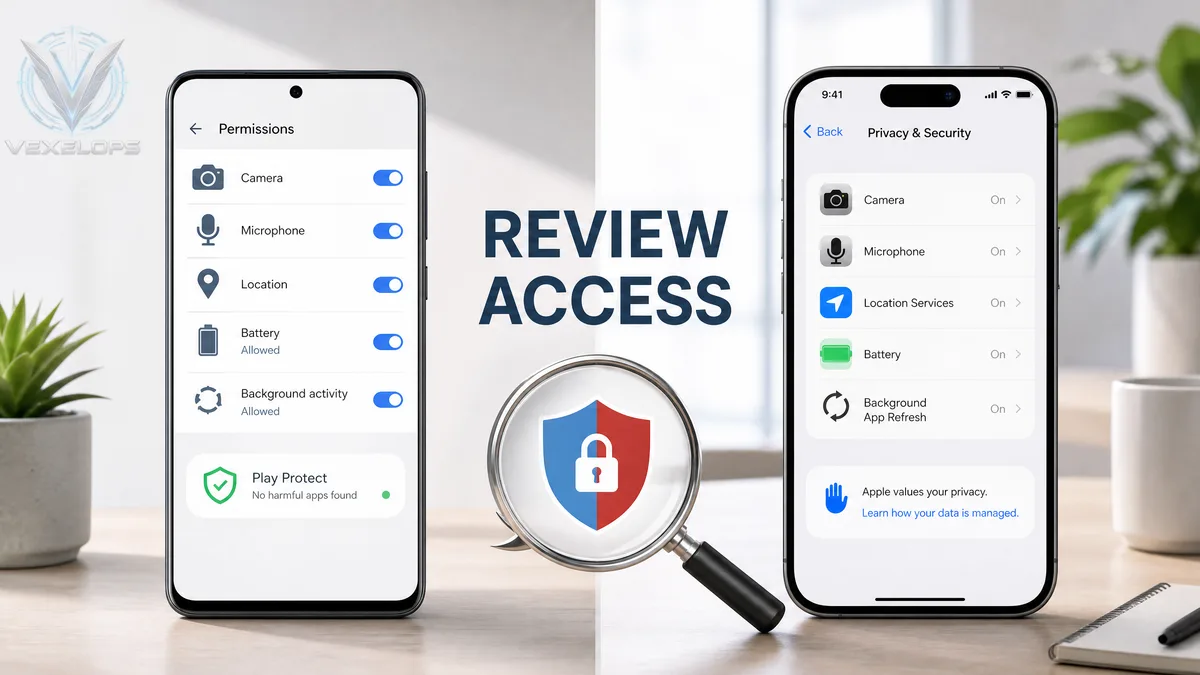
Android users can first open the app or application list in settings, view apps that have been recently installed and used, and then manage permissions to check camera, microphone, location, contacts, messages, calls, and file access. The names of menu options may vary by brand, but common paths are found under settings, privacy, permission management, or security areas. If an app's functions do not require access to camera, microphone, or location but requests extended use of these permissions, it can be changed to ask each time, to only allow while using the app, or to refuse. Special permissions like access to notifications, accessibility services, device administration, and display over other apps should be treated with more caution than standard permissions, as they may allow the program to read screens, assist in operations, or continuously display content. iPhone users can navigate to settings, privacy and security, to check each access related to location services, camera, microphone, photos, Bluetooth, contacts, and local network permissions. Users should open App Privacy Report to check how often and when apps access permissions and the domains they have connected to.
How to Review Background Activity, Battery Usage, and Data Consumption?
Android can check which apps consume the most power in the background through settings under battery, battery usage, or app battery management. Then, go to the mobile data or data usage page to inspect if unfamiliar apps are transmitting data excessively. If an infrequently used app is active in the background for long periods and has abnormal permissions or unknown origins, further actions are warranted. Google Play Protect scans applications on the device, including some apps from non-Google Play sources. Users can open the Google Play Store, go to their account icon and Play Protect to see recent scan results and perform checks. Google’s Play Protect Official Guide also reminds users that Play Protect can issue alerts for potentially harmful apps or assist with their removal. iPhone users can check recent activity and app usage from the battery settings and then review data consumption from mobile services or mobile data. If the App Privacy Report shows that an app accesses the camera, microphone, or location during unreasonable times, users should revoke access, stop using the app, and check for any available
How to Safely Handle Suspected Apps?
If an app is merely suspected of unnecessarily using permissions, camera, microphone, location, photos, notifications, or special accesses can be denied first, and users should observe if the phone returns to normal. Do not repeatedly open a suspected app for testing, and avoid clicking login, payment, or update links within the app. Once it is confirmed that an app is no longer needed, first document its name, developer, installation source, permissions, and abnormal timing, then uninstall it correctly from the system. Android users may check the Play Protect status and inspect for unfamiliar device administrators, accessibility services, or sideload sources. iPhone users should verify if any unfamiliar configuration profiles, VPNs, or device management items exist. If the app cannot be removed, the phone continues to exhibit problems, account notifications for strange logins occur, or if the device had previously installed unknown enterprise apps and sideloaded programs, significant actions such as changing the important account passwords using a trusted device should be taken first, checking email, banking, and social media account sessions, followed by contacting the device
How to Reduce Risks of Malicious Apps and Permission Abuse?
Before installing apps, ensure that the official store, developer name, comment contents, update times, and requested permissions are reasonable. Do not assume an app is official just because its name contains Security, Cleaner, Update, or an official brand name. When receiving requests to install APKs, configuration profiles, or remote control tools from unfamiliar texts, social messages, or web pop-ups, users should halt actions. Keep the operating system and apps updated regularly, enable Android Play Protect, and periodically check the iPhone’s App Privacy Report. Unnecessary permissions for seldom-used apps can be revoked, or the apps can be directly removed. Do not grant all apps long-term access to location, microphone, camera, contacts, and photos. If the phone involves banking, exchanges, or work accounts, additional checks like biometric authentication, screen locking, login notifications, trusted devices, and multi-factor authentication should be performed. If a certain app is suspected of reading passwords or verification codes, change the passwords from another trusted device and log out of other sessions. You can contact VexelOps for assistance, but account resets
Common Questions About Mobile Malicious Apps
Does a phone draining battery and overheating mean it has malicious apps?
Not necessarily. System updates, battery aging, poor signals, video playback, cloud synchronization, and background backups can all cause battery drain or overheating. A single symptom cannot prove that the phone has been infected. You can check battery usage, mobile data, recently installed apps, and permission records. If the same unfamiliar app simultaneously exhibits high power consumption, ongoing background activity, and unreasonable permissions, save data, revoke permissions, and remove the app while following the article's order.
Are the methods for checking malicious apps on Android and iPhone the same?
Not completely. The focus for checking Android includes Play Protect, app permissions, sideload sources, accessibility services, device administrators, and background activity; the settings names may also differ by phone brand. The focus for checking iPhone includes Privacy & Security, App Privacy Report, configuration profiles, VPNs, battery usage, and mobile data. Do not simply apply Android's APK sideload evaluation to iPhone, nor assume that because iPhone does not display a particular Android setting, that the device is completely safe.
Should I change my password after removing a suspicious app?
If an app has gained access to notifications, accessibility, screen display, keyboard, photos, messages, or other high-risk permissions, or you entered your password on a screen it provided, you should change important account passwords from another trusted device. Additionally, check login sessions, recovery methods, and multi-factor authentication settings. If it was merely an inadvertently installed app without permissions opened, details entered, and immediately removed, the risk might be lower, but you should still monitor account login notifications and device security. Do not ignore account changes or suspicious notifications just because the app has been removed.
One Key Takeaway: Check permissions and sources first, then determine if removal is necessary.