
Why Does a Windows Computer Slow Down Over Time?
A newly installed Windows computer typically feels very responsive. However, after months or even years of use, boot time may increase, opening multiple tabs in the browser may lead to stuttering, and accessing files or applications may take longer. This does not necessarily indicate a serious issue with Windows itself. Over time, computers usually accumulate more startup programs, background services, browser extensions, syncing tools, and various applications. If hardware resources do not increase accordingly, the system will naturally have more tasks to handle. Thus, when your computer slows down, the first step should not be to immediately download a so-called "computer accelerator" or to reinstall the system. Windows has provided several tools that can help you understand which parts are consuming resources. The Task Manager is one of the most useful tools to check first. By pressing Ctrl + Shift + Esc, you can see the current usage of main resources like CPU, Memory, and Disk. If a program is consistently using a lot of resources, you can further investigate whether it is causing the slowdown.
Do More Startup Programs Really Slow Down the Computer?
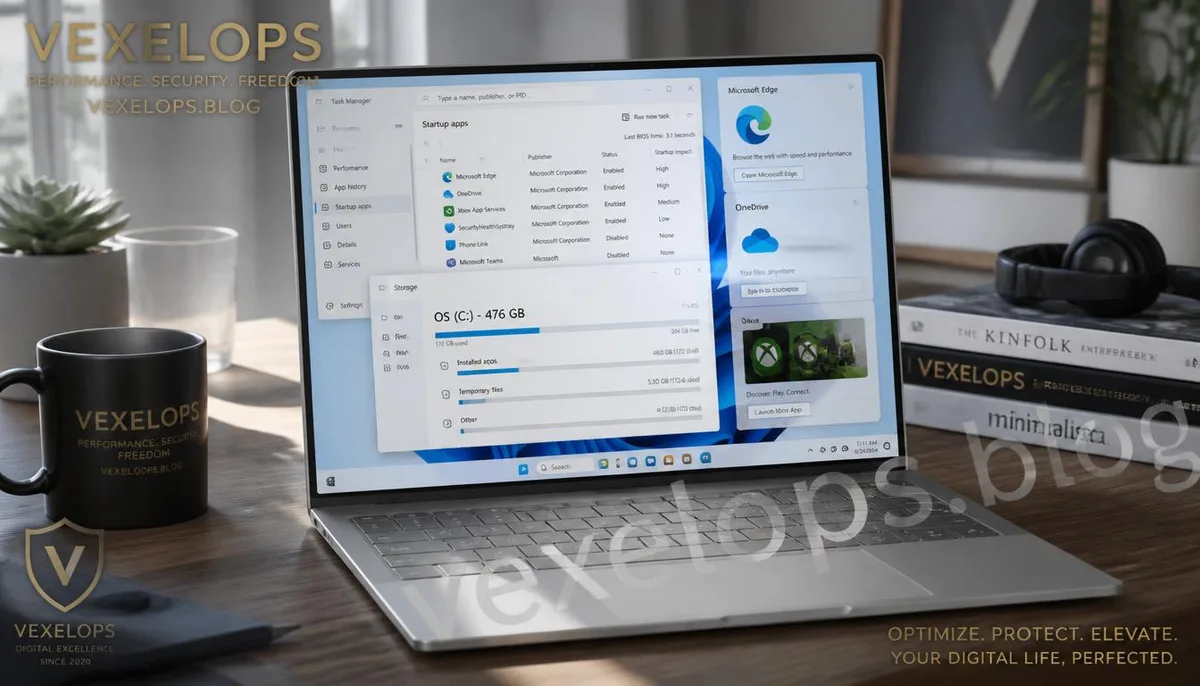
Many Windows users first notice their computer slowing down when the boot speed decreases. One reason for this is that more and more applications are set to run automatically when Windows starts. Tools like OneDrive, Teams, Discord, Steam, Adobe Creative Cloud, and others can start automatically after you log into Windows. An individual program usually does not cause major issues, but when a dozen applications start simultaneously, it changes the situation. The computer has to load more programs and background services in a short period, and CPU, Memory, and Disk usage may temporarily be higher right after booting. In Windows 11, you can view these programs in the Task Manager under Startup apps. You can pay attention to which applications have a high Startup impact and then judge whether you really need them to start automatically every time you boot. For example, if you use OneDrive daily, keeping it set to auto-start might make sense. However, if a program hasn't been used for months but loads every time Windows starts, consider disabling its auto-start.
Does Insufficient Disk Space Really Affect Speed?
Storage space is another easily overlooked issue. If your SSD or hard drive is near full for a long time, it can make it difficult to save new files and complicate how the system manages temporary data and application files. Windows also requires storage space to handle updates, temporary files, and other system tasks. You can go into Windows' Storage settings to see what content is currently occupying the most space. Many users find that the content taking up the most space isn't Windows itself, but rather videos, downloads, large games, old installation files, virtual machine images, or long-accumulated application data. If you use gaming platforms like Steam, Epic Games, or Xbox, you should check games that you haven't played in a long time. Modern PC games can easily occupy tens of GB, or even over 100 GB; a few large games can quickly consume SSD space. This is why, when cleaning up storage space, don’t only focus on the Temp folder. The real focus should be on those things you no longer need that have accumulated and are taking up significant space.
Which Background Programs Can Be Safely Closed?
If your computer suddenly slows down during use, the Task Manager is a valuable place to check. After opening the Task Manager, you can sort by CPU, Memory, or Disk usage to see which programs are currently consuming the most system resources. If Chrome has many tabs open, the browser itself might consume a lot of Memory; if a video editing tool is processing a large file, high CPU or Disk usage may be completely normal. The key focus should be on "unexpected" high resource usage. For example, if you only have your desktop open and no large programs running, but a strange application is using a lot of CPU for a long time; or if a background program continues to use a lot of Disk without a clear reason. This situation warrants further investigation into the program name, installation source, and file location. Don't terminate any high CPU program indiscriminately. Windows, Microsoft Defender, browsers, and other system services may naturally consume a lot of resources at specific times. Closing important system processes might create other issues. A better method is to first confirm:
- What is this program?
- Do I know where it was installed from?
- Is it currently performing a task I need?
- Has it maintained high resource usage for a long time?
- Would closing it affect ongoing work?
If the answers are unclear, don't terminate the program casually.

What Improvements Can Be Made Without Reinstalling Windows?
Many people think about reinstalling Windows when their computer slows down. Reinstalling can indeed bring a previously cluttered computer back to a cleaner state, but it also requires backing up data, reinstalling applications, re-logging into accounts, and resetting the working environment. So before considering a reinstall, you can first do some low-cost cleanup. Start by checking the Startup apps and disabling applications that don’t need to run every time at startup. Next, tidy up the Storage by removing large files and applications that you are certain you no longer need. Then, check if Windows Update, Microsoft Store, and major applications need updates. The browser is also worth checking. If Chrome or Edge has installed many Extensions, you can remove or deactivate plugins that are rarely used. Having too many browser tabs open, excessive extensions, and multiple background applications running can increase Memory usage. Additionally, don’t overlook Windows Security. If your computer suddenly becomes unusually slow, with unknown programs consuming CPU or Disk, accompanied by modified browser homepages, strange popups, or unfamiliar software, this should not be treated
Common Questions About Windows Computer Slowdowns and Performance Improvements
If My Computer's Memory Usage is High, Do I Definitely Need to Upgrade RAM?
Not necessarily. High Memory usage in Windows does not mean that your computer needs a RAM upgrade, as modern systems tend to utilize available memory efficiently to enhance productivity. What you should really watch for is whether there are frequent noticeable stutters during use, applications reloading, browser tabs frequently becoming unresponsive, or if the system starts using a lot of virtual memory. If you usually only use the browser, Office, and everyday applications, but the memory is consistently near its limit, check which programs are using the most RAM. If you often use Photoshop, Premiere Pro, large IDEs, virtual machines, or modern games, and your memory needs have long exceeded current capacity, then upgrading RAM could provide noticeable improvements.
Can All Windows Startup Programs Be Disabled?
Not recommended to disable all of them. Some startup programs are essential for your daily work, such as cloud sync tools, security software, or enterprise applications, and disabling them could disrupt normal use. A better approach is to review the Startup apps one by one and address those you know are not needed to run automatically at startup. This can reduce the workload at boot time without excessively clearing and disturbing your usual habits. If you come across completely unfamiliar startup items, don’t just disable them because they have strange names. First, verify their developer, installation source, and corresponding program before deciding whether to disable them.
Does Deleting Temporary Files Really Speed Up the Computer?
Cleaning up temporary files can free up storage space, but don’t think of it as a guaranteed method to significantly speed up your computer. If your SSD has plenty of available space, and the computer itself isn’t under clear storage pressure, simply deleting a few hundred MB of temporary files usually won’t suddenly make the entire computer faster. What is more worthwhile is dealing with large files that have accumulated over time, unused applications, and downloads that take up considerable space. Windows' Storage Management feature can help you see the capacity for different types of data, making the cleanup based on actual usage rather than blindly deleting system files.
One Key Takeaway: Before rushing to reinstall, check startup programs, memory, storage space, and background processes, as this is often more efficient.