
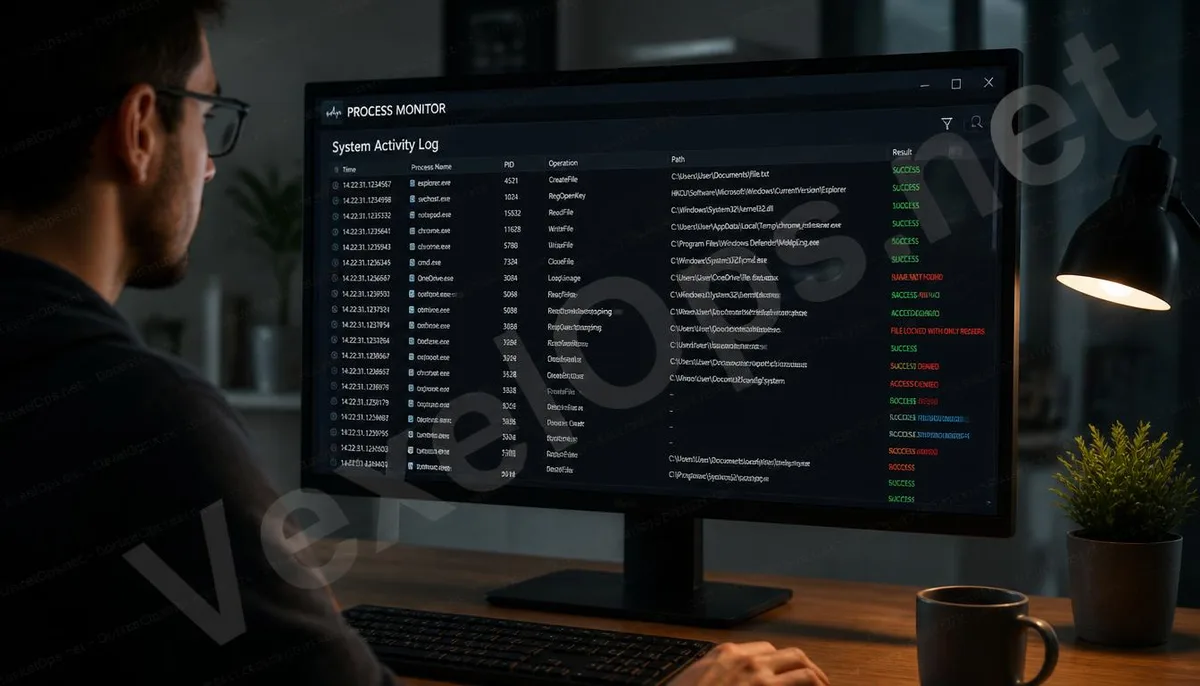
Task Manager Shows Programs but Not What They're Doing
Most Windows users turn to the Task Manager when experiencing a slow computer or suspicious behavior. It can display a list of currently running programs, CPU and memory usage, and can force quit unresponsive applications. However, the Task Manager has a noticeable limitation: it only tells you which programs are running but cannot inform you about what those programs are doing to the system. This is precisely why Process Monitor exists. It is part of the Microsoft Sysinternals suite and can log file read and write operations, registry accesses, and network connection behaviors for every program in real-time, allowing users to see a deeper level of system activity than the Task Manager can provide.
What Types of System Behaviors Can Process Monitor Log?
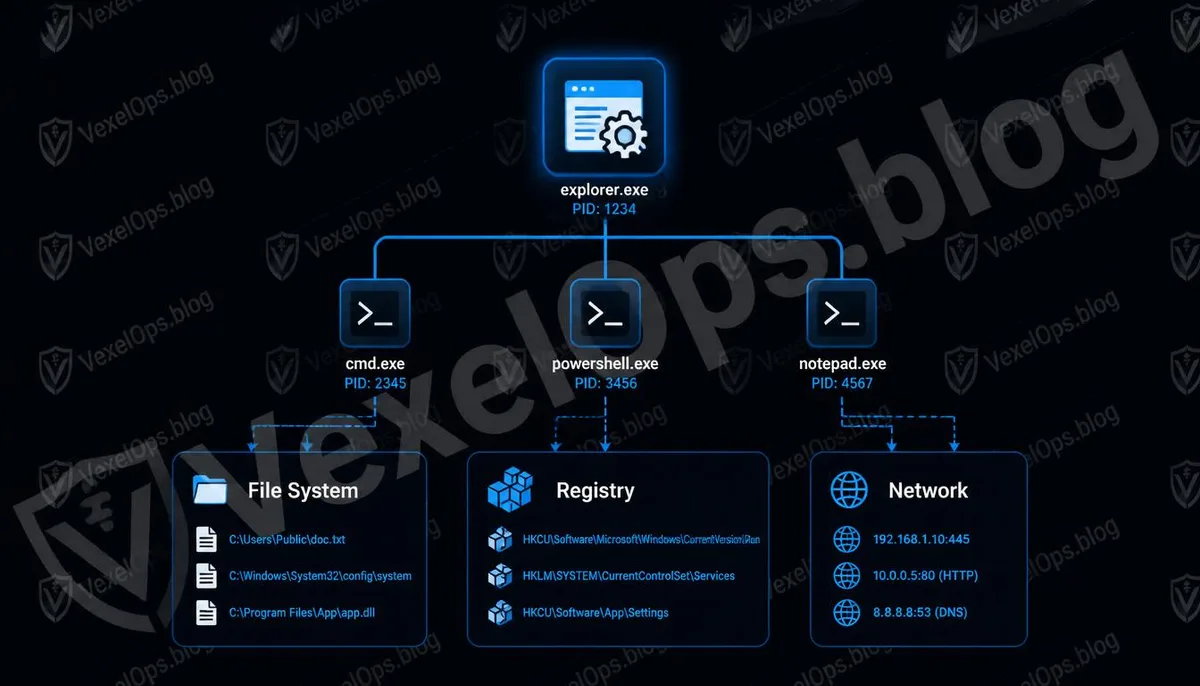
Process Monitor mainly tracks three major categories of activities. The first category is file system operations, including what files programs read, what data they write, and which paths they delete or create. The second category is registry activity, which includes the queries and modifications programs make to the Windows registry, particularly useful for understanding the impact of software installations on system settings. The third category is network connection logs, showing the target addresses and port information that programs attempt to connect to. Combined, these three categories of information allow users to clearly see the complete behavioral trail of a program from startup to execution, rather than just knowing it exists in the process list.
Why Do Information Security Professionals Frequently Use This Tool?
In information security contexts, Process Monitor is commonly used to analyze the behavior of suspicious programs. When an unknown executable is run in a sandbox environment, researchers can use Process Monitor to observe which system resources it interacts with, whether it attempts to write to sensitive directories, or if it connects to unknown external addresses. For regular users, this tool can also help understand why a particular application suddenly accesses unrelated folders or troubleshoot whether a program has abnormal persistent activity in the background. It is not a tool that requires a professional background to operate, but finding meaningful information from the logs does require some patience and basic system knowledge.
How Can Regular Users Get Started?
Process Monitor can be directly downloaded from the official Microsoft website without the need for installation; simply run it after downloading to start logging system activities. Upon launching, a flood of event streams will appear, which may overwhelm first-time users. In practice, the most effective way to use it is to first narrow down the scope of observation using the filtering feature. For instance, displaying only the activity of specific programs, only looking at write operations, or only tracking a particular folder path can reduce the overwhelming amount of logs down to the crucial sections that need focus, providing more directed analysis.
The Practical Meaning of Such Tools in Digital Security Contexts
Understanding the existence of Process Monitor has a direct significance for regular users: when a computer exhibits abnormal behavior, such as unexplained slowdowns, unknown network traffic, or antivirus software detecting suspicious activity without clear reasons, such tools provide a more proactive means of observation than solely relying on antivirus programs. It does not make judgments for you but records occurrences, allowing you or professionals to review event contexts. If you discover uncertain abnormal records through the analysis process or need assistance determining if certain system behaviors are concerning, VexelOps can help organize this technical information, clarifying the direction for subsequent handling.
Frequently Asked Questions about Process Monitor
What is the Difference Between Process Monitor and Process Explorer?
Both are members of the Microsoft Sysinternals suite, but their uses differ. Process Explorer functions as an advanced version of Task Manager, primarily used to view a list of currently running processes and their hierarchical relationships, suitable for quickly understanding what programs are operating in the system. Process Monitor, on the other hand, focuses on logging real-time behaviors of programs, tracking specific operations at the file, registry, and network levels, which is suitable for scenarios requiring in-depth analysis of program behaviors. The two tools together can provide a more comprehensive view of the system status.
What System Permissions Are Required to Use Process Monitor?
Running Process Monitor typically requires administrator privileges because it needs to access low-level system event logs. If executed under a regular user account, the system will prompt you to elevate your permissions, which must be confirmed for it to start normally and log complete system activities. If used in corporate or organizational environments, it is recommended to first check compliance with the information security policies of the respective entity.
Does Process Monitor Affect Computer Performance?
Since Process Monitor continuously logs a large number of system events, it indeed imposes a certain degree of load on system resources during execution, particularly in terms of memory usage. Generally, it is recommended to enable it only when analyzing specific issues and turn it off afterward, to avoid long-term background operation. If just used occasionally for troubleshooting, this impact is usually within acceptable limits.
I See Many Unfamiliar Process Names in the Logs, Does This Mean My Computer Has Issues?
Not necessarily. Windows systems generate a substantial amount of background activity during normal operations, and many unfamiliar process names are actually normal components of the operating system or installed software. The volume of events logged by Process Monitor is extremely large, so it is common for first-time users to encounter numerous unfamiliar items. Rather than worrying about each name, it is more effective to focus first on specific programs or behaviors you want to observe, narrowing the scope through the filtering feature before making judgments. One Key Takeaway: The value of Process Monitor lies not in its ability to identify problems for you, but in its capacity to make previously invisible behaviors within the system visible, providing a concrete starting point for users to understand what has happened when they encounter abnormal situations.