
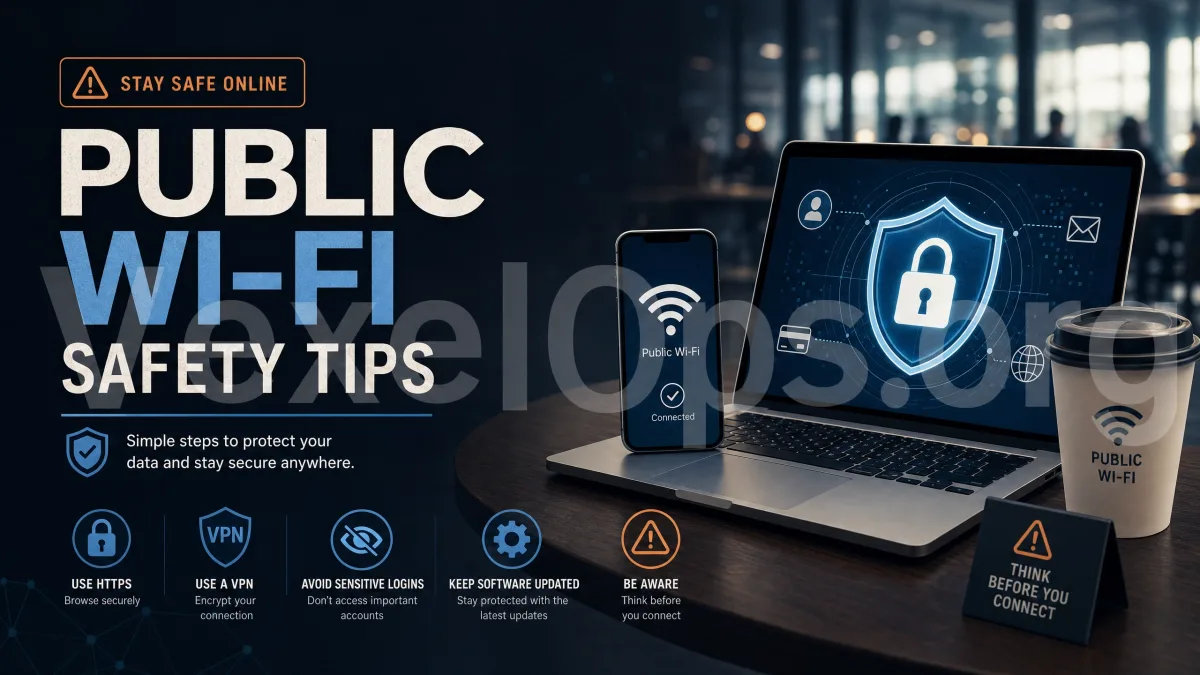
Public Wi-Fi is Convenient, but Not Completely Trustworthy
In coffee shops, hotels, airports, malls, libraries, or schools, public Wi-Fi is nearly everywhere. For everyday users, connecting to Wi-Fi can save mobile data and make browsing on laptops and tablets more convenient. However, the issue with public Wi-Fi is that you may not know who provides the network or what other devices are on the same network. Some public networks have simpler settings, making them less secure than home or office networks; in some locations, there may even be fake hotspots with names very similar to official Wi-Fi. This doesn’t mean that public Wi-Fi is unusable, but it’s essential to know what to avoid and what settings to check beforehand.
Risk 1: Fake Wi-Fi Hotspots
In public places, you may see many similarly named Wi-Fi networks, like those of coffee shops, hotels, malls, or with words like Free, Guest, or Public added. Some fake hotspots intentionally use names that are very close to official ones, misleading users into thinking it’s the network provided by the establishment. Once connected, users may be directed to suspicious login pages, fake promotional pages, or pages asking for personal information. Before using public Wi-Fi, it’s best to confirm the correct Wi-Fi name with staff, at the counter, or on official signage. Don’t connect and enter information just because the network name looks official.
Risk 2: Logging into Important Accounts on Public Networks
The biggest risk with public Wi-Fi is performing highly sensitive operations, such as logging into main email accounts, bank accounts, payment platforms, cryptocurrency wallets, company backends, or other important services. Although many websites now have encrypted connections, everyday users should still minimize unnecessary risks. Especially on unfamiliar public Wi-Fi, it is not recommended to make payments, change passwords, upload important files, or handle sensitive data. If it’s absolutely necessary to log into an important account, make sure the URL is correct, the connection is secure, and consider using a trusted VPN or mobile data network.
Risk 3: Device Sharing Settings Not Disabled
Many people may have file sharing, printer sharing, nearby device discovery, or other local network functions enabled when using laptops. These features may be convenient at home or in the office, but can increase exposure risks on public Wi-Fi. Everyday users should avoid making their devices discoverable to others when connecting to public Wi-Fi. You can check the network settings in your system to set the public network as ‘Public’ or disable unnecessary sharing features. These settings don’t have to be complicated, but they are easily overlooked.
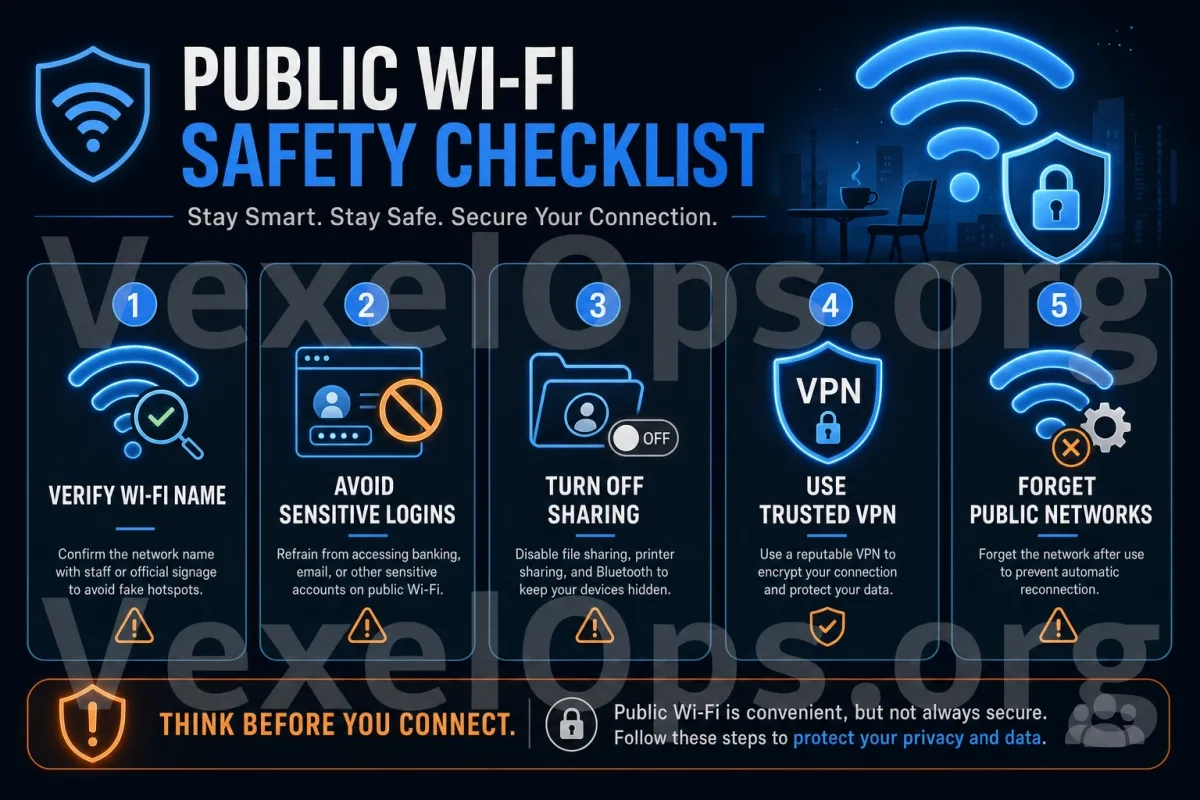
Simple Checklist Before Using Public Wi-Fi
Before using public Wi-Fi, you can make a few simple checks: 1. Is the Wi-Fi name provided by an official source? 2. Do you need to input unnecessary personal information? 3. Are you handling sensitive accounts or payment operations? 4. Have device sharing features been disabled? 5. Can you switch to mobile data? 6. Is it necessary to use a trusted VPN? If you’re just browsing news, checking maps, or looking up public information, the risks are generally low. But if it involves logging in, making payments, sending files, or entering personal information, you should be extra cautious.
VPNs Can Help, but They’re Not a Cure-All
Using a trusted VPN on public Wi-Fi can enhance connection protection and reduce some risks in public network environments. For those who travel frequently or use laptops outside, VPNs are valuable tools to understand. However, VPNs are not a cure-all. They cannot help you identify fake websites, nor can they prevent you from entering your password on phishing pages. If you click a fake customer service link and actively input your account, password, and verification code, a VPN will not completely protect you. Therefore, VPNs should be used alongside safe practices, such as checking URLs, not clicking on unfamiliar links, avoiding downloads of unknown files, and not entering information on suspicious pages.
Remember to Clean Up After Usage
After leaving public Wi-Fi, you can do a simple cleanup. Ensure that your device has disconnected from the public network and does not automatically reconnect to unfamiliar hotspots. For public Wi-Fi that you no longer use, you can choose to ‘forget this network.’ If you’ve ever logged into important accounts on public Wi-Fi, check your login history upon returning to a secure network to confirm if there is any unusual activity. Important accounts should also have two-factor authentication enabled, so the account isn’t solely reliant on password protection.
Core Principles of Public Wi-Fi Security
The risks of public Wi-Fi may not be immediately alarming, but everyday users need to understand the boundaries. You can use it to browse standard information, but it’s unsuitable for handling highly sensitive data; you can connect to officially verified networks, but don’t blindly trust similar-named hotspots; you can use a VPN for extra protection, but still judge the credibility of connections and websites. The simplest principle is: on public Wi-Fi, don’t conduct important logins, make payments, or input sensitive information. By maintaining this habit, you can significantly reduce unnecessary account and privacy risks. Safe browsing doesn’t always require complex technology; much of the time, it just involves one more confirmation or one less high-risk operation.