
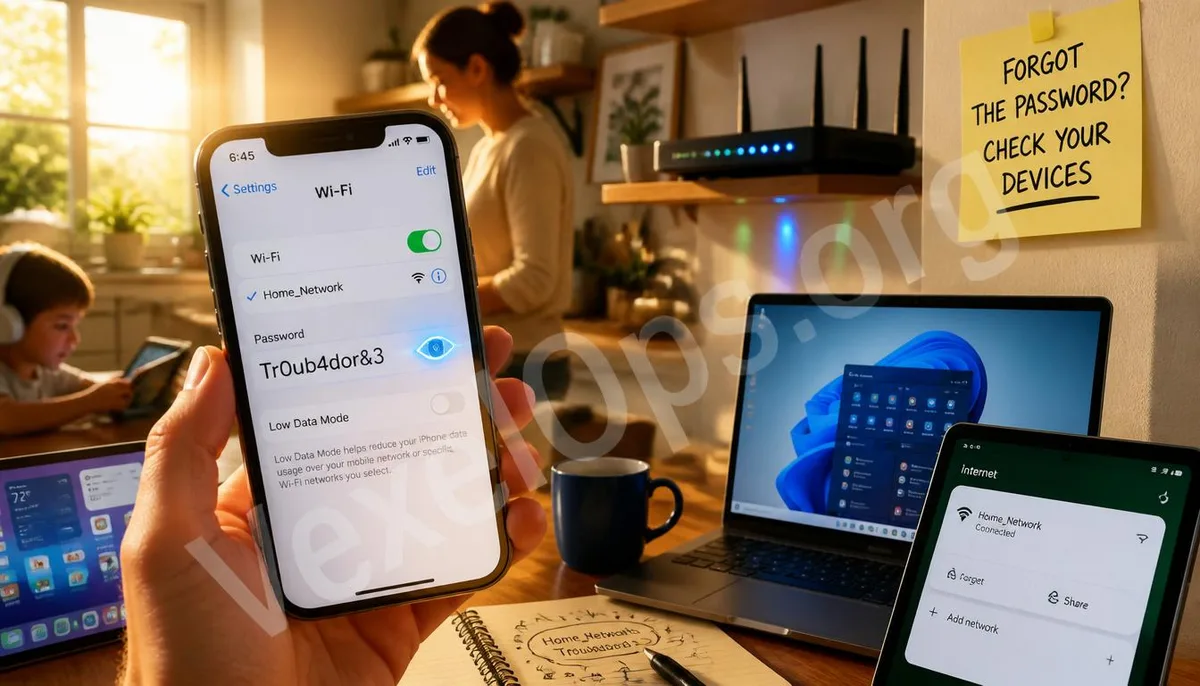
The Password Is Still There, You Just Can’t Remember Where
After each successful connection to Wi-Fi, the device saves the network's password locally, allowing automatic reconnection without re-entering it. This storage happens silently, and most people never actively check it, but when needed, the password can be retrieved. Below are the methods for viewing saved passwords based on the device type.
Viewing Saved Wi-Fi Passwords on Windows
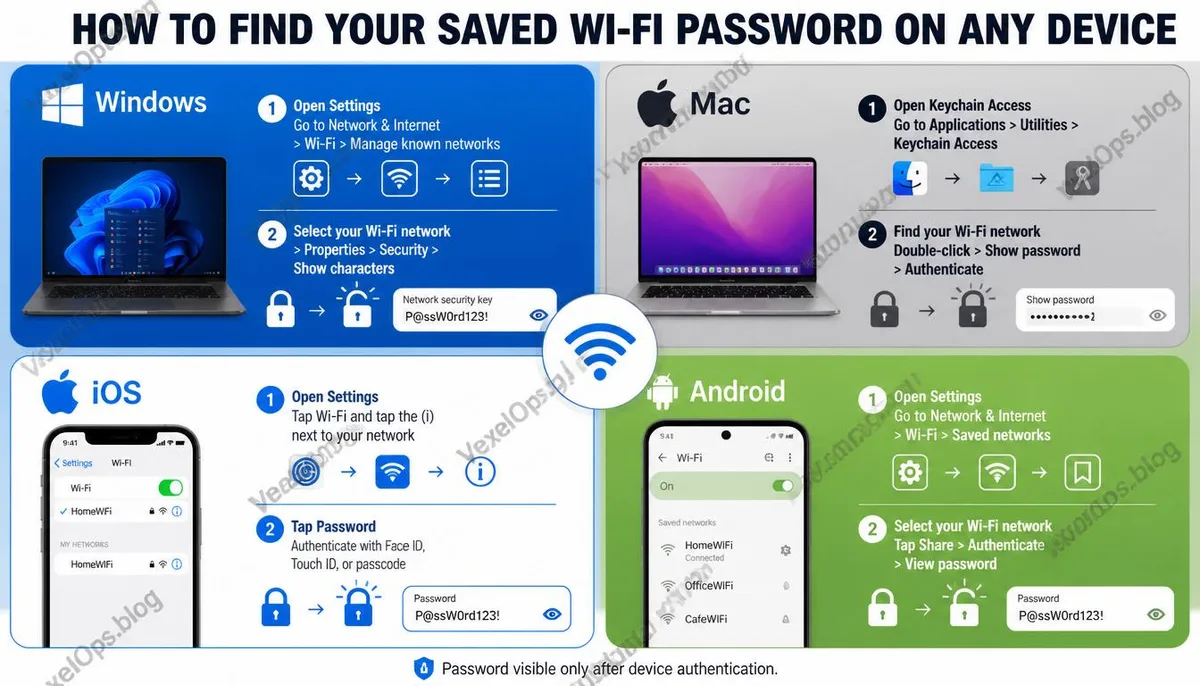
Method 1: Through Network Settings Interface 1. Click on the Wi-Fi icon in the bottom right of the taskbar and select Network and Internet Settings. 2. Click on Advanced Network Settings, and find the More Network Adapter Options. 3. Right-click on the currently connected Wi-Fi adapter and select Status. 4. Click on Wireless Properties and switch to the Security tab. 5. Check the Show Characters box, and the password will appear in the Network Security Key field. This method only allows you to view the password for the network you are currently connected to. Method 2: View All Saved Networks via Command Prompt If you need to view the password of a network you’ve connected to but is currently out of range, you can use Command Prompt. 1. Press the Windows key, search for cmd, and run it as an administrator. 2. Type in the following command to view all saved network names: netsh wlan show profiles 3. Once you see the target network name, input the following command (replace NetworkName with the actual name): netsh wlan show profile name="NetworkName" key=clear 4. In the output result, find the Security Settings block—the line containing the key information is the password.
Viewing Saved Wi-Fi Passwords on Mac
Through System Preferences (macOS Ventura and later) 1. Click the Apple logo in the top left corner and select System Preferences. 2. Click on Wi-Fi. 3. Find the target network and click the info button on the right side. 4. There is an eye icon next to the password field; click it and enter your Mac login password to view it. Through Keychain Access (Applicable for all versions) 1. Open Finder, navigate to Applications, then go to the Utilities folder. 2. Open Keychain Access. 3. Enter the Wi-Fi network name in the search bar. 4. Find the corresponding item and double-click to open it. 5. Check the box to Show Password, then enter your Mac login password or admin password to reveal the Wi-Fi password.
Viewing Saved Wi-Fi Passwords on iPhone
After iOS 16, Apple allows users to directly view saved Wi-Fi passwords on the iPhone. 1. Open Settings, and select Wi-Fi. 2. Find the target network, then click on the info icon on the right. 3. Tap on the password field and authenticate with Face ID or Touch ID. 4. The password will be shown in plain text. iOS versions prior to 16 do not provide a direct interface for viewing Wi-Fi passwords, requiring you to check via Mac's Keychain, provided the iPhone has iCloud Keychain sync enabled.
Viewing Saved Wi-Fi Passwords on Android
After Android 10, most Android devices provide a feature to view saved Wi-Fi passwords, though the navigation may vary slightly between brands. For Google Pixel and Native Android Steps: 1. Go to Settings, select Network and Internet, then choose Internet. 2. Click on the gear icon next to the currently connected Wi-Fi network. 3. Tap Share and authenticate using fingerprint or PIN. 4. The screen will show a QR code, and the password will also be displayed in plain text below the QR code. For Samsung Devices: The path is similar. In the Wi-Fi settings, find the target network, select See More; some versions allow password viewing directly, while others require sharing via QR code.
Viewing All Connected Passwords Through Router Backend
If the above methods do not work, there is one ultimate option: logging directly into the router's management interface. In your browser's address bar, enter 192.168.1.1 or 192.168.0.1; most home routers can be accessed through one of these addresses. Enter the admin username and password (if never changed, the default credentials can usually be found on a label on the back of the router), and go to the wireless network settings page. The Wi-Fi password will be displayed either in plain text or in a toggled format. This method requires that your device is already connected to the router's network, whether via Wi-Fi or ethernet. Further Reading: Is Your Wi-Fi Secure? Common Risks of Home Wireless Networks.
Frequently Asked Questions About Viewing Wi-Fi Passwords
Can I share the password with friends through a QR code after retrieving it?
Yes, and this is one of the most convenient ways to share Wi-Fi currently. On Android devices, the Wi-Fi sharing feature directly generates a QR code, allowing the other party to connect automatically by scanning it without entering the password manually. iPhones also have a convenient Wi-Fi sharing feature; when the other iPhone is near yours and attempts to connect to the same network, your iPhone receives a notification to share the password. After confirming, the other party can connect directly without knowing the password. The router's backend or some Wi-Fi management apps can also generate QR codes for printing or displaying for guests to scan, providing a convenient way to share without exposing the actual password.
If my Wi-Fi password is known by my neighbor, what should I note before changing it?
Changing the Wi-Fi password requires logging into the router's management interface, finding the Wi-Fi password field under wireless network settings to make modifications. After changing, all currently connected devices will be automatically disconnected and will need to input the new password to reconnect, which includes all phones, computers, smart TVs, smart speakers, etc., that are using this Wi-Fi. It’s advisable to check which devices in your home will need reconfiguration before making changes. After changing the password, it's also recommended to check if the router's admin password has been changed and if the firmware is updated. If the credentials for the management interface are still the default, even after changing the Wi-Fi password, anyone with intentions can log into the router for configuration changes.
Can smartphones view stored passwords of other networks (not the currently connected one)?
On Android, the Wi-Fi settings page allows viewing of all saved network passwords, not limited to the currently connected one; you can find the target network from the list of saved networks and check its password via QR code sharing. On iPhone, in the Wi-Fi settings page, tapping the info icon next to any saved network allows users to view that network's password, regardless of whether it’s the currently connected network. This feature enables you to recall past connected network passwords when needed, like when returning to a parent's house or an office where you need to reconnect but can’t remember the password.
One Key Takeaway: If you forget your Wi-Fi password, you don't need to reset the router. As long as any device has successfully connected before, the password is already stored on that device. Windows, Mac, iPhone, and Android all provide official ways to view it, and you can retrieve it in just a few steps.