

First, Confirm Your Mac Model: The Method to Enter Recovery Mode Differs
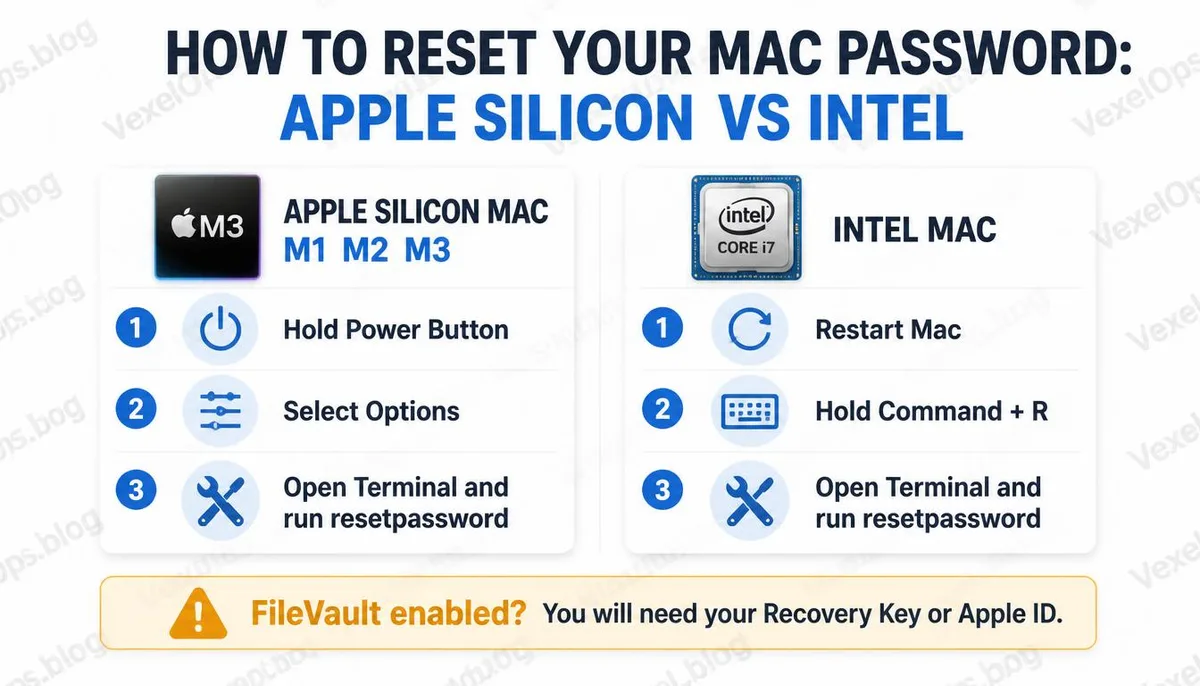
Resetting your Mac password requires entering a special boot environment known as macOS Recovery Mode. This environment allows you to use several system tools provided by Apple without needing to log in, including the password reset function. The way to enter Recovery Mode differs depending on the type of chip used in your Mac. Macs released after late 2020 use Apple’s own M series chip, known as Apple Silicon, while older models use Intel chips, and the methods for entering Recovery Mode are different. If you are unsure of which chip your Mac uses, click the Apple logo in the upper left corner and select 'About This Mac' to verify under the processor or chip section.
Entering Recovery Mode for Apple Silicon Macs
- Completely shut down your Mac, do not restart, but fully power it off
- Hold the power button, continue to hold for about ten seconds
- Once the startup options screen appears, release the power button
- Click Options, then click Continue to enter Recovery Mode
Entering Recovery Mode for Intel Macs
- Restart your Mac
- As soon as you hear the startup sound, immediately hold down the Command and R keys
- Continue holding until you see the Apple logo or a spinning globe
- Release the keys once you enter Recovery Mode
If you do not successfully enter on the first try, attempt again; the key is to press the keys as soon as the startup sound is heard. Pressing too early is fine, but waiting too long may cause you to miss it.
Steps to Reset Your Password After Entering Recovery Mode
Once successfully in Recovery Mode, the interface will look different from normal macOS, with only a few function menus at the top. In the function menu, find Utilities, select Terminal, and type the following command into the terminal window, pressing Enter: resetpassword This will open Apple’s password reset tool, guiding you to select the account for which you need to reset the password, then verify your identity and set a new password. In some versions of macOS, the reset tool demands you authenticate with your Apple ID, confirming that this Mac indeed belongs to you, before allowing you to set a new password.
Additional Considerations When FileVault Is Enabled
FileVault is macOS’s disk encryption feature; once enabled, all data on the disk is encrypted and requires the correct key for access. If your Mac has FileVault enabled, the password reset process will include an extra verification step. You must first unlock FileVault before entering macOS, which requires the FileVault recovery key or authentication via Apple ID. The FileVault recovery key is generated when FileVault is enabled, and Apple recommends printing it or storing it in a secure location, or choosing your Apple ID as a backup unlocking method. If you cannot find the FileVault recovery key and haven’t set up an Apple ID as a backup, your access path to the disk will be very limited. This is why keeping the recovery key safe when enabling FileVault is crucial.
Resetting Your Password via Apple ID
If your Mac is connected to the internet at the login screen, you might sometimes reset your password directly through the login interface without entering Recovery Mode. After entering the wrong password three times consecutively on the login screen, some Macs will present an option to reset using your Apple ID. Click this, enter your Apple ID account and password, and upon successful verification, you can set a new login password directly. Whether this option appears depends on whether your Mac account is linked to your Apple ID and the state of your system version and security settings. This option will not be displayed in all situations.
Common Questions Users Ask About Mac Password Recovery
Keychain is the system used by macOS to store various passwords and credentials, including Wi-Fi passwords, website account passwords, and application credentials. When you reset your login password via Recovery Mode, the new password may
What if I've also Forgotten My Apple ID Password? Can I Still Recover My Mac Password?
If you’ve forgotten your Apple ID password simultaneously, the recovery path first needs to address the Apple ID issue. You can go to iforgot.apple.com in a browser on any device to reset your Apple ID password via your backup email or phone number. After restoring access to your Apple ID, you can return to the Mac and reset your login password using the Apple ID verification method. The Apple ID and Mac login password are two separate passwords, but they are interdependent during the recovery process; thus, if both are forgotten, you must start with the Apple ID.
Can I Reset the Password This Way for a Company-issued Mac?
Company-managed Macs are usually managed through MDM, which allows the company’s IT department to remotely manage device settings, including restricting access to Recovery Mode or requiring additional verification to reset passwords in certain situations. If you are using a company-issued Mac, it is advisable to contact your IT department first and seek their help in resetting the password via MDM, rather than attempting the personal device recovery process mentioned above. Attempting to bypass the MDM settings managed by the company is generally not allowed under most corporate policies and could affect access to corporate data on the device.
One Key Takeaway: If you forget your Mac password, entering macOS Recovery Mode is the most straightforward official route. The entry methods differ between Apple Silicon and Intel Macs, and confirming the storage location of the FileVault recovery key in advance is the key prerequisite for a smooth recovery process.