
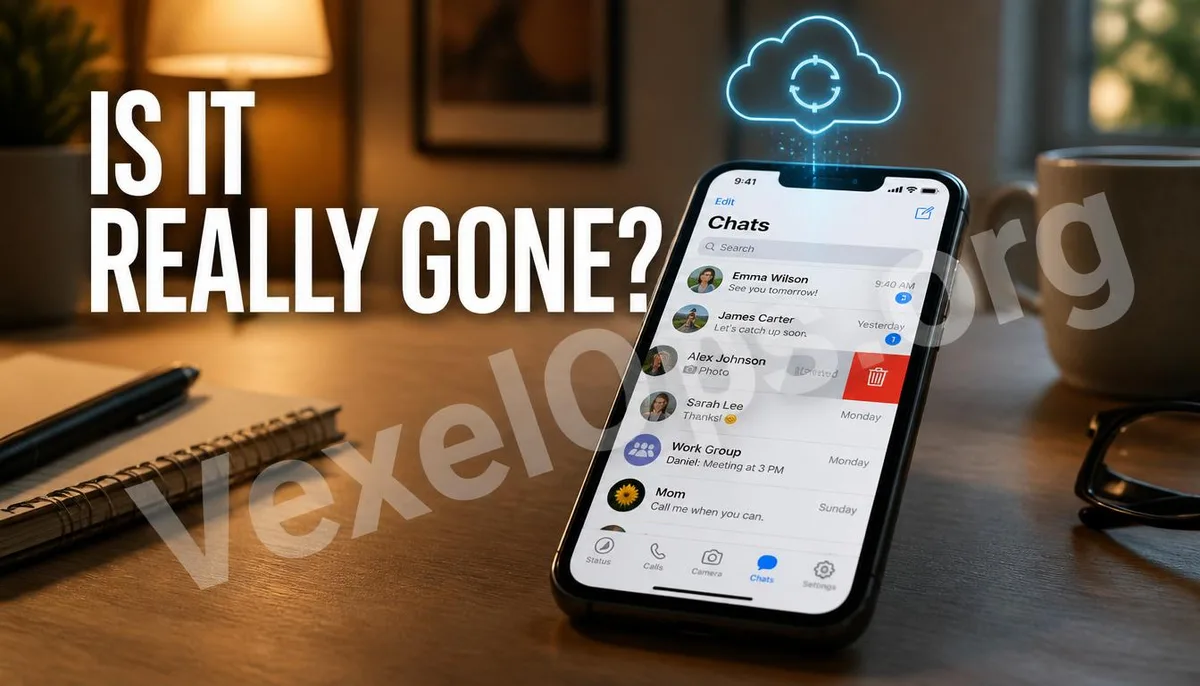
Messages Deleted from Your Phone: Are They Really Gone?
Long press on a conversation, select delete, and that string of chat history instantly disappears from the screen. Many people instinctively feel that this conversation no longer exists. This intuition is only half correct because the deletion process only removes the displayed copy on the mobile device, and does not necessarily mean that every location storing that message has been cleared. To understand this gap, it's important to know how LINE and WhatsApp typically handle backups.
What Does Cloud Backup Usually Do?
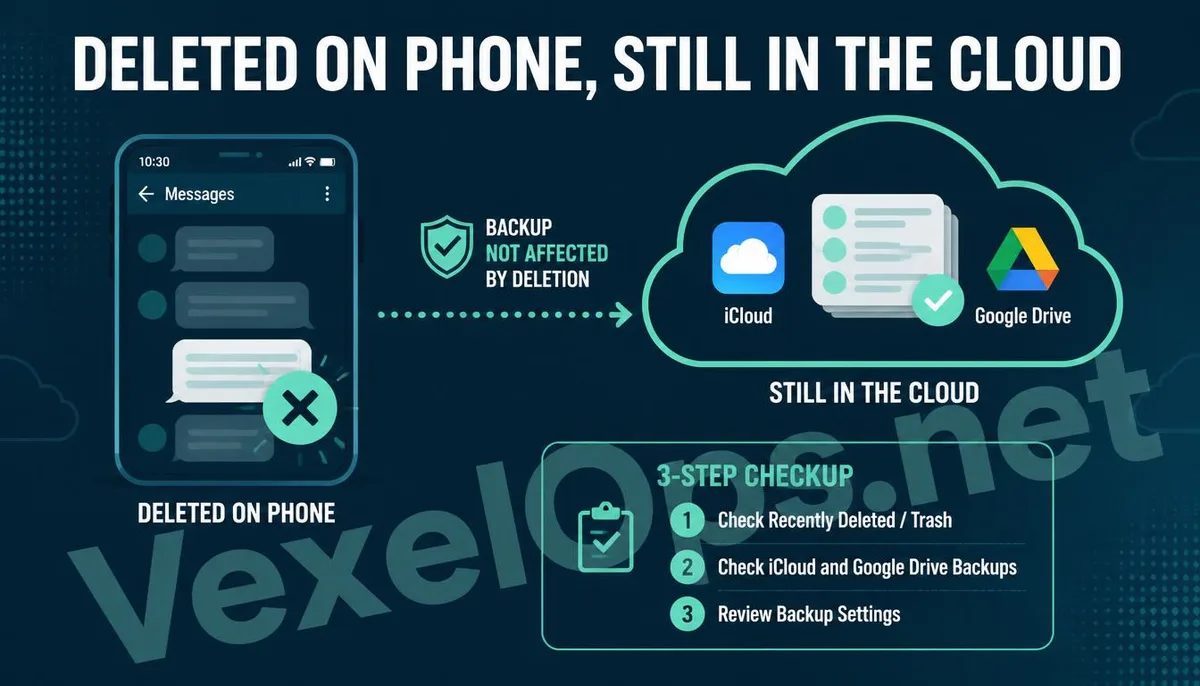
Most people, when setting up a LINE or WhatsApp account, are usually guided to enable the auto backup feature. The purpose is to quickly restore past chat histories when switching phones or reinstalling the app, which is indeed a convenient design for users. WhatsApp's backup mechanism uploads chat records and media files to iPhone's iCloud or Android devices' Google Drive based on the user's specified schedule. The backup frequency can be set to daily, weekly, or to occur only when connected to Wi-Fi. LINE’s backup logic is similar, using iCloud or Google Drive, but the difference is that LINE backups typically require the user to manually trigger them or start the restoration process when reinstalling the app, unlike WhatsApp which automatically executes backups by default. The problem arises here; when a conversation is deleted from the phone, it usually does not trigger an update for the cloud backup file synchronously. This means that even if the message cannot be found on the mobile device, the complete chat record saved at the last backup timestamp remains intact in the cloud until overwritten by the next backup or cleared by the user.
What Risks Does This Gap Represent?
Understanding the backup mechanism leads to several practical scenarios. If a phone is lost or stolen, and the thief knows your Apple ID or Google account login information, theoretically they could restore complete conversation history from a previous point in time by reinstalling WhatsApp or LINE and using the backup restore feature, even if you have deleted messages on the original device because the source of the restore is the cloud backup, not the original phone. Another common scenario is when switching to a new phone, you directly sell or gift the old device without first verifying whether the cloud backup account has been logged out or changed. If the new user logs in using the same Apple ID or Google account, they may have access to the backup data stored in the cloud.
Practical Methods to Check and Clear Backups
To check your cloud backup status or to fully clear chat records from a specific period, you can follow these steps: 1. Check iCloud backup status: Go to iPhone settings, tap on your Apple ID name at the top, select iCloud, and see if WhatsApp and LINE are listed in the apps using iCloud space. You can check the last backup time and delete this app's cloud backup data if needed. 2. Check Google Drive backup status: On an Android device, open the Google Drive app, go to settings under backup and sync, and you can see WhatsApp's backup records and the last backup time, as well as manually delete existing backups. 3. Adjust the auto backup frequency or turn it off completely. If you don’t want sensitive conversations to continue being written to the cloud, you can find the chat backup option in WhatsApp settings and set the auto backup to never. This way, conversations will no longer be automatically uploaded, but be aware that afterward, if you switch phones, you will not be able to restore past chat records from the cloud.
Frequently Asked Questions About Chat Cloud Backup
After Enabling End-to-End Encryption, Will Cloud Backup Still Be Visible to Others?
WhatsApp uses end-to-end encryption for message transmission, but this protection applies only to the security of messages while being sent and does not fully guarantee the encryption status of the cloud backup files. WhatsApp has recently provided a backup encryption option allowing users to set an additional password to protect cloud backup content; if this setting is not actively enabled, the security of the backup file's access mainly depends on the safety of your iCloud or Google account.
If I Have Cleared Chat History and Disabled Auto Backup, Am I Completely Safe?
Disabling auto backup and clearing existing backup files significantly reduces the risk of restoring chat records via the cloud, but it does not mean that all channels are blocked. If the other party has taken screenshots or forwarded parts of the content while the conversation still existed, that data cannot be recovered even if you delete it on your end or clear the backups later. The risks associated with cloud backups address the scenarios of loss of device or account access and do not retroactively address content already retained by the other party.
Does LINE Backup Also Include Call Records and Money Transfer Records?
LINE's backup mainly covers text messages, stickers, and some media files. Call records are typically not fully preserved in backup files, but text records related to calls, such as timestamps, may be included. As for records related to LINE Pay and financial transactions, they are usually managed by independent accounting systems and are not included in general chat record backups. It is recommended to confirm these separately on the LINE Pay transaction records page.
One Key Takeaway: Deleting chat logs on your phone does not mean that the cloud backup is also cleared. If you lose your phone or your account is accessed, the backup files may become a channel for message leaks. Regularly check the backup status on iCloud or Google Drive, and adjust the auto-backup settings as necessary to truly reduce this risk.