
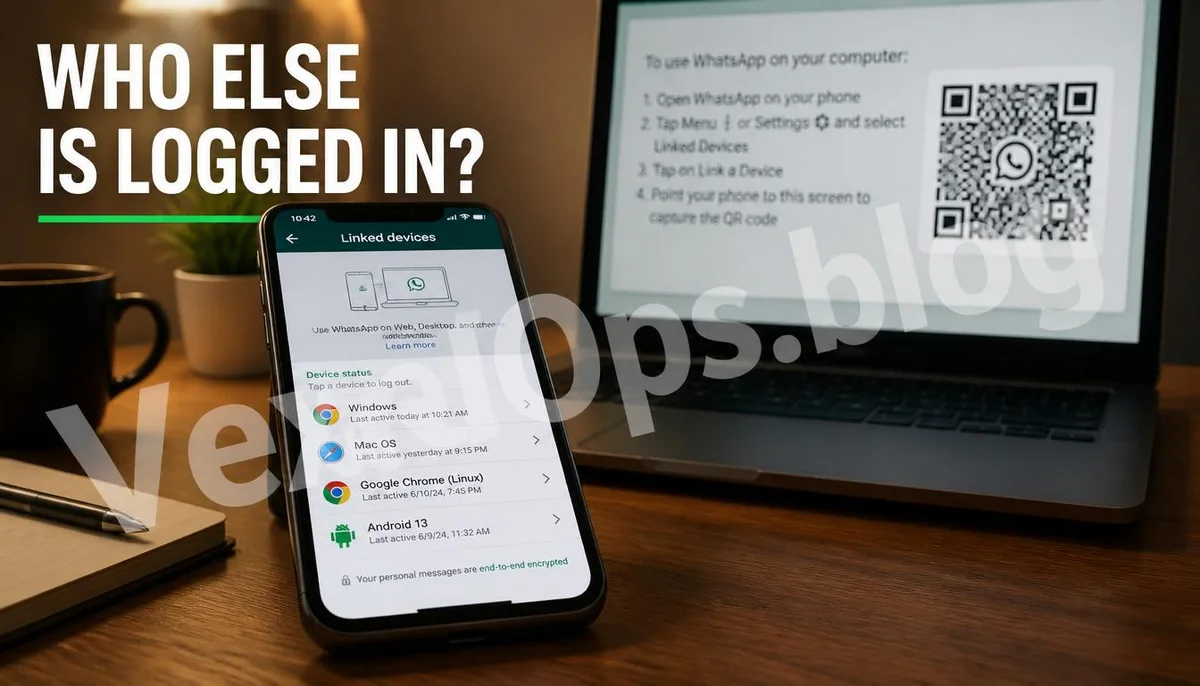
How Do Messages Seem to Be Accessed by Others?
If you've felt lately that someone nearby knows your conversations on Telegram even though you haven't lent your phone to anyone, this warrants a serious check. This situation is often caused by Telegram's convenient yet easily overlooked risk, which is the desktop QR Code login feature.
How Does Telegram Desktop Login Work?
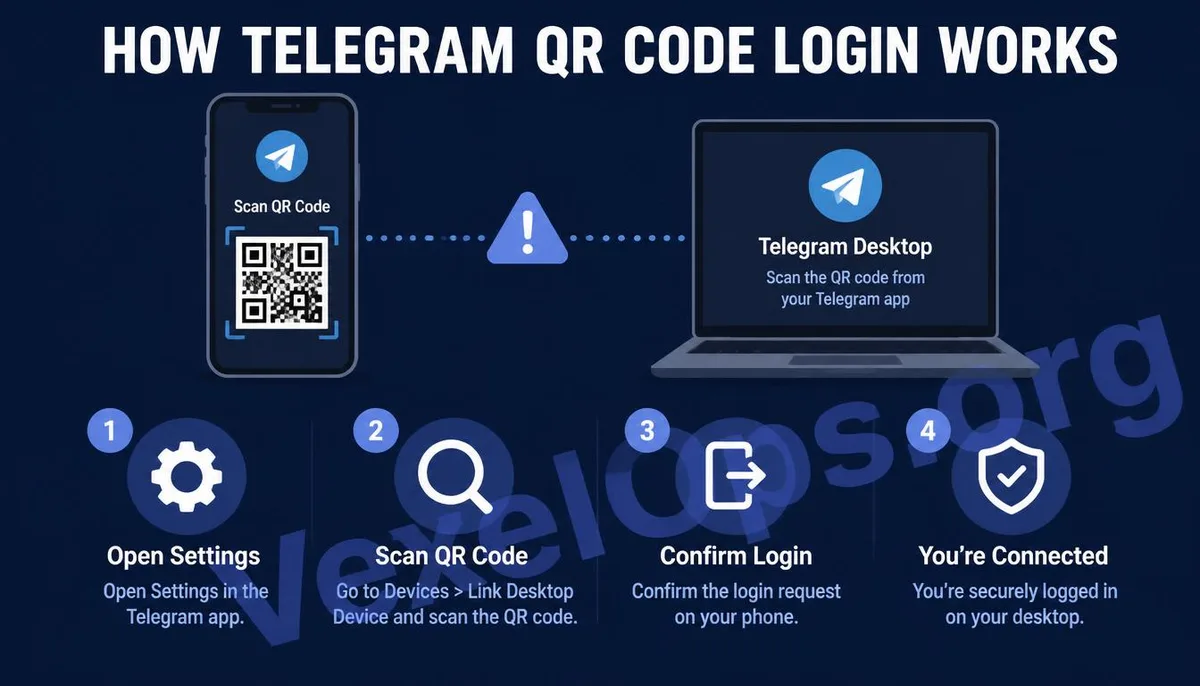
Unlike most messaging apps that require inputting a username and password, Telegram’s desktop and web versions are designed to log in via scanning a QR Code. The process involves opening the Telegram desktop or web application, where a QR Code appears, and then scanning it with the Telegram app on your phone. Once scanned successfully, the desktop app will automatically log into the account linked to your phone without needing a password. This design aims to enhance login convenience by eliminating password input. However, it also means that anyone who can get your phone’s Telegram to scan a prepared QR Code can gain full access to your account on their computer, subsequently syncing all messages sent and received.
How Can This Happen?
Most people might think this requires physical contact with their phone, which is true—this is why such scenarios typically occur between close relationships, like family, partners, or friends who have temporarily borrowed your phone. Common scenarios include when the phone temporarily leaves your sight, like charging on a table or lent to someone for a short time. The other person takes this opportunity to open Telegram, selects the device option in settings, and completes the QR Code scan login with a pre-prepared screen. Another case is when the phone has no screen lock or the code is known by someone familiar, allowing them to complete the process rapidly.
How to Check Which Devices Are Currently Logged In?
This check can be performed directly on your phone without any technical background.
- Open Telegram on your phone, go to settings, and find the device option. This page will list all devices currently logged into this account, including types, approximate login locations, and last active times.
- Check each device on the list. If you see a device that isn’t yours or unfamiliar browser names, or a login timestamp that you didn't create, these are abnormal logins that need addressing.
- Click on that device's record and choose to terminate the session. This action will immediately log out Telegram on that device, preventing it from syncing new messages.
- If you want to process all unfamiliar devices at once, the settings page offers an option to terminate all other sessions, keeping the currently used phone logged in and logging out all others.
What Additional Protections Can Be Strengthened After Checking?
Discovering and logging out unfamiliar devices is just the first step; there are additional settings to consider that lower the chances of future incidents. Enable two-step verification in the settings, which will require an extra password you set whenever a device logs in, ensuring even if someone scans the QR Code, they cannot log in without this password. It is also advisable to set a screen lock password that is difficult for acquaintances to guess, minimizing the opportunity for misuse when your phone is momentarily borrowed. If you suspect ongoing surveillance or concerns about personal safety, it might be challenging to assess the complete situation on your own. VexelOps can assist in clarifying the circumstances behind such continuous monitoring and confirm potential risks at the account and device levels.
Common Questions Users Ask About Telegram Login Security
Will the Other Person See My Messages After I End Their Session?
No. Ending a session immediately cuts off that device’s connection to your account, preventing any new messages from syncing to that device. However, it’s important to note that any messages viewed or captured before the session was terminated cannot be recalled through this action; they must be monitored in the conversation for potential leaks.
Will Enabling Two-Step Verification Make My Login Process Inconvenient?
Two-step verification only requires a password when a new device attempts to log into the account, not during daily use on your own phone, which is already logged in without needing to verify repeatedly. This setting is meant to add a layer of confirmation to the login behavior, used only when truly adding a new device, impacting daily use minimally.
Can I Find Out Who Scanned the QR Code If I Don't Know?
The device list page usually shows the operating system, browser names, and approximate locations of logged-in devices, which can provide initial clues. For instance, if the location appears familiar, it could mean the login was from someone who had access to your phone. However, this feature does not directly reveal who operated it; if further confirmation of the situation is needed or if there’s suspicion of serious ongoing surveillance, other clues would need to be assessed together.
One Key Takeaway: While Telegram's QR Code login is convenient, it can also be exploited by people you know to access your account. Regularly check the list of devices in your settings, log out of any unfamiliar sessions, and enable two-step verification to prevent such situations.