
Open the storage page in your phone settings and see that over half of the capacity is used, but after searching through albums, downloads, and various apps, you just can't find that much data. This puzzling gap often leads to questions about what is actually taking up space. The answer tends to be hidden in several places that don't actively display content. This article outlines how to check for hidden content on iPhone and Android.
Easily Overlooked Hidden Areas on iPhone
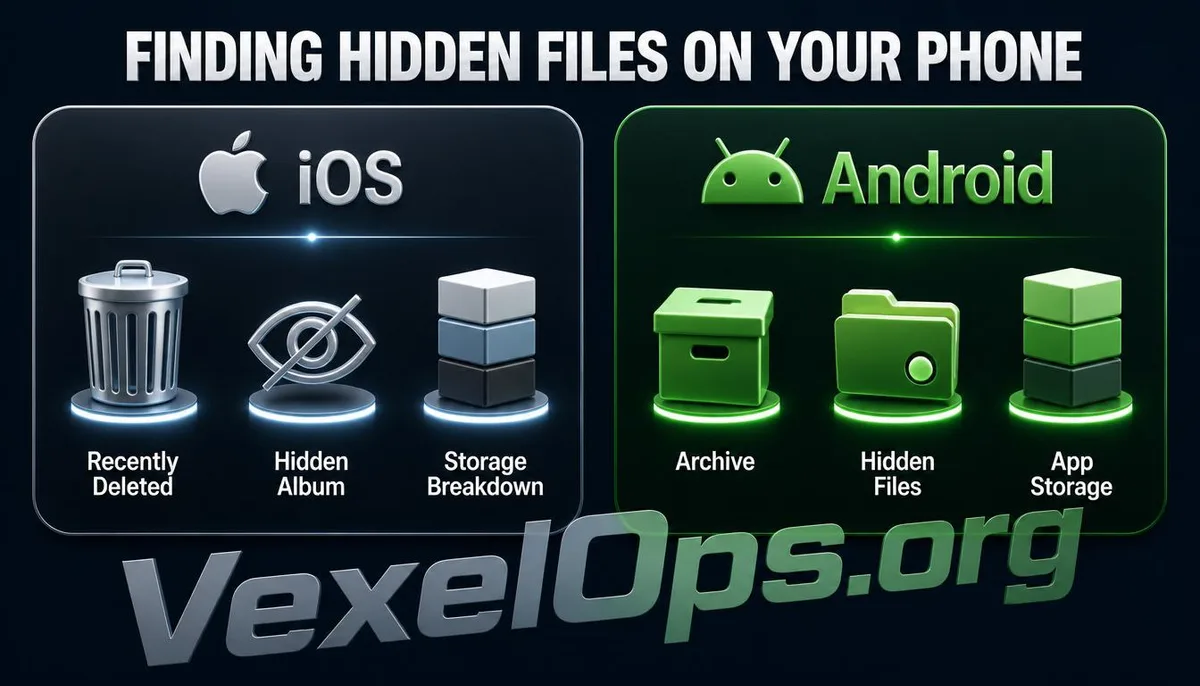
In the iPhone's Photos app, there's an often-overlooked album category called Recently Deleted. Deleted photos and videos are actually retained here for 30 days before being permanently removed from the device. If you have accumulated many deleted photos without manually clearing this album, these items still occupy storage space. Open the Photos app, switch to the Albums page, scroll down to find this category, which offers an option to clear everything. Another commonly overlooked area is the Hidden Album. iPhone allows users to mark specific photos as hidden. These hidden photos do not appear in the standard album views but still take up storage space. To view this category, scroll down in the Albums page to find the Hidden item, where you can see all marked hidden content. In addition to photo-related areas, go into Settings, select General, and then iPhone Storage. This page lists the actual storage size used by each app, sorted by usage, making it the most direct way to check who is stealthily using up storage space. This is particularly relevant for chat apps and social media apps, where cached files often accumulate to a significant extent over time.
How to Check Hidden Files on Android
Android systems generally allow users to browse the complete folder structure on the device using file manager type apps, which is quite different from iPhone's closed file management logic. Most built-in file manager apps on Android phones, like Samsung's My Files, offer an option to show hidden files, usually found in the more settings or menu in the top right corner of the app. Once enabled, you'll see folders and files that were previously marked as hidden, indicated by a dot prefix. Google Photos also features Archive and Trash functions, where archived photos are hidden from the main browsing interface but not deleted, and Trash operates similarly to iPhone's Recently Deleted logic. Deleted photos stay here for a period; both functions are worth regular checks for potential cleanup. To gain deeper insight into how much space each app actually uses, navigate to Settings, then Applications or Storage, which will also list apps sorted by usage.
How to Decide What to Delete After Finding Hidden Files
After checking these areas, just because you see items doesn’t mean you should delete everything immediately. Here is a simple logic for judgment:
- For transitional categories like Recently Deleted, Trash, and Archive, if you're sure you don't need recovery, you can clear them out directly.
- Cache data from apps can typically be cleared without worry; the app will automatically rebuild these upon reloading, without affecting account data itself.
- For content in the Hidden Album, because users actively marked these as hidden, it's recommended to check the contents first before deleting, to avoid accidentally removing photos you want to keep.
Common Questions Users Ask About Hidden Phone Files
Can These Methods Find Things Hidden by Someone Else on My Phone?
The methods introduced in this article check for hidden mechanisms designed by the phone's operating system itself, like Recently Deleted, Hidden Album, and Archive features. These are items that users can find and manage through normal operations. If you suspect that there are unauthorized monitoring software or malicious programs installed on your phone by someone else, this is a completely different level of issue. Usually, identifying this requires checking the installed app list, watching for unusual battery drain or network usage, and possibly scanning with antivirus software for further confirmation. Simply checking these hidden file functions won't cover such situations.
If I Clear Recently Deleted, Can I Never Retrieve Those Photos?
Once you manually clear the Recently Deleted album, or wait for 30 days for the system to auto-clear the retention period, those photos and videos are permanently removed from the device itself and cannot be recovered via built-in phone functions. However, if the photos were synced with iCloud Photos or Google Photos' cloud backup features prior to deletion, theoretically, previous backup versions may still remain on the cloud service provider's servers for a period of time. Whether you can retrieve them depends on each cloud service’s data retention policies, which fall outside the scope of local storage management.
Why Didn't My Storage Change After Clearing Cache?
If there is no significant change in storage after clearing the cache, it may mean that the substantial space consumption isn't from the cached data but from the actual size of the app's installation files or user data stored internally. For instance, photos and videos accumulated over years in messaging apps represent core data that won't be removed just by clearing cache. In such cases, it’s recommended to return to the storage page and closely examine each app's data details, distinguishing between the space consumed by cache and data, to determine what really needs to be addressed.
One Key Takeaway: When your phone's storage is full, the issue often lies in areas that usually don't display actively, such as Recently Deleted, Hidden Albums, and App Cache. Regularly checking these areas can often help recover significant space.