
One moment your computer is running fine, and the next, the fan noise increases, and the mouse cursor takes several seconds to respond. In such cases, many people immediately suspect a virus or that their computer is too old and needs replacing. However, often the problem lies with one or two specific programs quietly consuming a significant amount of system resources. Windows' built-in Task Manager can help you identify these culprits directly, without the need for any extra tools.
Ways to Open Task Manager
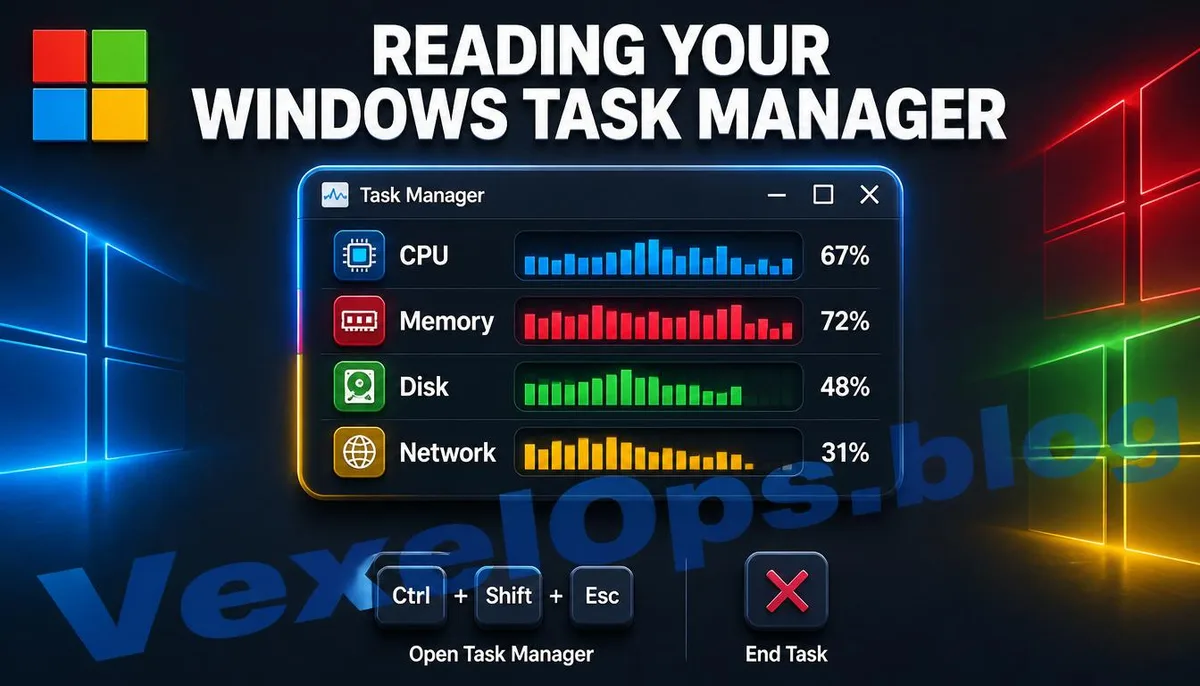
The fastest way is to press the Ctrl, Shift, and Esc keys at the same time. This combination will bring up the Task Manager window directly, bypassing any additional steps. Alternatively, you can right-click on the taskbar, where you will usually find the Task Manager option, or press Ctrl, Alt, Delete, and select Task Manager from the options that appear.
Identify Who Is Stealthily Consuming Resources
After opening Task Manager, switch to the Processes tab. Here, you will see a list of all currently running programs and background services. At the top of the screen, there are usually several column headers corresponding to real-time usage percentages of system resources like CPU, memory, disk, and network. Click on any column header, such as the CPU column, and the program list will reorder based on usage, with the programs consuming the most resources at the top. This allows you to easily identify which program is using the most computational resources. The same method applies to the memory column; if you notice that the memory usage is close to full even when only a few windows are open, it usually indicates that a particular program is abnormally consuming resources, which may be due to poor design or an anomaly in execution. Pay particular attention to the disk column. If an otherwise inconspicuous background program shows consistently high disk usage, it is worth verifying what this program is and whether its source is trustworthy.
Handling Identified Problematic Programs
Once you've confirmed that a program is indeed consuming resources abnormally, select it from the list. The option to 'End Task' will appear in the lower-right corner or in the right-click menu. Clicking this will immediately force close the program, allowing the system resources to be released. This is a temporary fix; if the program is software you regularly use, re-opening it may lead to the same issue recurring, necessitating further investigation into whether the software itself is problematic or needs updating. If you do not recognize the name of a program in the list, you can note it down and search for it online to confirm if it is a legitimate system component or a suspicious item that needs further scanning with antivirus software. Microsoft also provides detailed descriptions of Task Manager features on its support page for reference.
Programs Consuming Resources During Startup Can Also Be Managed
In addition to the currently running programs, there is an often-overlooked tab in Task Manager called Startup. This lists the programs that automatically start when your computer boots, along with a rating of their impact on startup speed. If you see many little-used programs marked as having a high impact, you can select them and click Disable. This action will not delete the program itself; it simply prevents it from starting automatically at boot. It can still be opened manually when needed, and this small change often has an immediately noticeable effect on improving startup speed and overall system resource usage.
Common User Questions About Task Manager and Computer Performance
Will Ending a Task Cause System Issues?
Most of the time, users end tasks for applications they've installed themselves, which is usually safe. The worst-case scenario is that the program will need to be restarted. However, if a process appears in the list with a name that looks like a core system component—especially those including Windows or System—it is advisable to check the function of the item through a search before deciding to end it. Forcefully closing certain core services at the system level can indeed lead to system instability and might require a reboot to restore normal operation.
Is High Memory Usage Indicating Insufficient RAM That Needs Upgrading?
High memory utilization does not necessarily mean that your hardware specifications are inadequate; it may also be the result of too many unnecessary background programs running at once or a specific software having a memory leak problem, where it continues to occupy memory without releasing it properly as it runs, causing memory usage to increase over time.
Is There a Mac Equivalent to Task Manager?
Yes, the Mac system has a corresponding built-in tool called Activity Monitor, which can be opened by typing 'Activity Monitor' in the spotlight search at the upper right corner of your screen or found under Applications Utilities. Activity Monitor also provides tabs for CPU, memory, energy, disk, and network, allowing you to view which programs are currently consuming the most resources, and it operates similarly to Windows Task Manager, helping to identify programs causing slowdowns on a Mac.
One Key Takeaway: If your computer suddenly slows down, don't be quick to suspect that the hardware is too old. Open the Task Manager to check which programs are using the highest CPU, memory, and disk. Often, you can find the source of the problem within a few minutes, and you won't need to install any additional tools to handle it.