
The password management feature in browsers is one of the most used yet least actively managed digital tools. Most people allow browsers to store passwords and then forget they exist until they need to log in on another device or forget a specific website password, at which point they start searching everywhere. This article explains how to view and manage saved passwords across three major browsers.
Viewing Passwords in Google Chrome
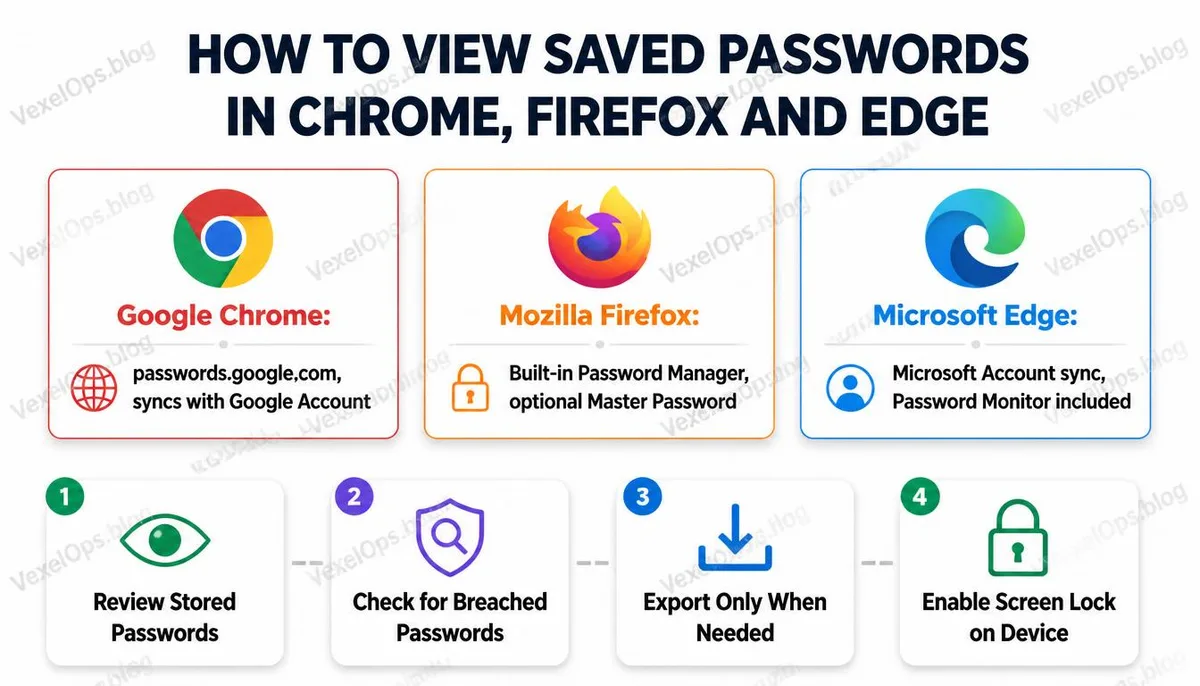
Chrome's password management is integrated with your Google account. If you are signed into your Google account in Chrome, passwords will be synchronized and stored on Google's servers, making them accessible on any device running Chrome. Steps to View on Computer: 1. Open Chrome and click on your profile picture or menu in the upper right corner. 2. Select Google Password Manager, or directly enter passwords.google.com in the address bar. 3. After logging into your Google account, you'll see a list of all stored website accounts. 4. Click the eye icon next to any record, and enter your computer's login password or Google account password to verify and view the plaintext password. Path in Chrome Settings: Settings → Autofill and passwords → Google Password Manager Chrome also provides a password health check feature that identifies which passwords have appeared in data breaches, which are reused across multiple sites, and which are weak. This feature can be found in the right-side menu of the password management tool page.
Viewing Passwords in Firefox
Firefox stores passwords locally. If you use Firefox Sync and log into your Mozilla account, your passwords are also encrypted and synchronized to the cloud. Steps to View: 1. Click on the menu icon (three horizontal lines) in the upper right corner. 2. Select Passwords. 3. The screen will display a list of all saved accounts. 4. Click any record and then click the eye icon next to the password field. 5. The system will prompt you to enter your computer's user password for verification. Firefox provides a feature called a Master Password that can be enabled in settings to protect all passwords stored in Firefox with an additional password. Even if someone has access to your computer, they cannot view the passwords directly. This feature is turned off by default and should be enabled when using shared computers.
Viewing Passwords in Microsoft Edge
Edge's password management is integrated with your Microsoft account. If you are signed into your Microsoft account, passwords will be synchronized and stored on Microsoft's servers. Steps to View: 1. Click on the menu icon in the upper right corner. 2. Select Settings. 3. In the left menu, find Passwords. 4. You can see the list of all saved accounts; click the eye icon, and after verification, you can view the passwords. Edge also offers a password monitor feature that automatically detects whether stored passwords have appeared in known data breaches and actively notifies you when issues are discovered.
How to Export Saved Passwords from Browsers
When you need to transfer passwords from one browser to another or import them into a password manager, browsers typically offer an export feature to save them as a CSV file. Exporting from Chrome: passwords.google.com → Click the settings icon in the upper right corner → Export Passwords Exporting from Firefox: Password management page → Click the menu in the upper right corner → Export Login Data Exporting from Edge: Settings → Passwords → Click the three-dot menu in the upper right corner → Export Passwords The exported CSV file contains all website accounts and plaintext passwords, making it a highly sensitive file. After exporting, if not used immediately, it should be deleted right after the transfer and not be left in your computer's downloads folder for a prolonged period. Further Reading: How to Choose a Password Manager? Comparison and Selection of 1Password, Bitwarden, LastPass.
Security Considerations for Browser Password Storage
While the convenience of the browser's password storage feature is significant, there are several important limitations regarding security. The local protection of passwords stored in browsers relies on the operating system's login account. If someone has direct access to your computer while you're away, and your computer account has no login password set or the screen lock timeout is too long, they could open the browser's password management page and view your passwords without additional verification in certain situations. Some malware is specifically designed to extract passwords from browser storage locations, known as information stealers, commercial versions of which circulate on the dark web. This is why keeping your device's antivirus software updated and avoiding downloading unverified software are particularly crucial for users who utilize the browser password storage feature. In contrast, standalone password managers typically offer stronger encryption protection and stricter verification mechanisms, making them a worthy alternative for users with higher security needs.
Common Questions Users Ask About Browser Password Management
Can Google See the Passwords Saved in Chrome?
The answer to this question involves the encryption architecture of the Google Password Manager. According to Google's explanation, the passwords stored in the Google Password Manager are encrypted during transmission and storage, and Google claims they do not use these passwords for advertising or other purposes. Chrome also offers an option called device-side encryption. When enabled, the passwords are encrypted locally with your device login information before being uploaded, making them undecipherable to even Google's servers. This option can be found in the settings at passwords.google.com, but the cost of enabling it is the loss of some cross-device conveniences, such as not being able to view passwords directly on the passwords.google.com page.
Is It Safe to Log Into Chrome with a Personal Google Account on a Work Computer?
This situation presents several risks to consider. In certain corporate environments, the IT department can access browser settings and data through management policies, depending on the company's IT management structure. A more immediate risk is that when you log out of a work computer, if you haven't completely logged out of Chrome and cleared local data, the stored passwords may still remain on that computer. It’s advisable to ensure that your personal Chrome profile data is isolated from the company’s management system when using a personal Chrome profile on a work computer, or consider using an independent password manager application on a work computer instead of relying on the built-in storage of the browser.
Forgot the Password for a Website, but the Browser Didn't Save It—Is There a Way to Retrieve It?
If the browser didn't save it and you can't recall the password, the most direct way is to use the forgot password feature on that website to reset it. Before trying this, you might want to check a few places, including whether any other browser on other devices may have saved that password, whether it is recorded in any password manager, or if you've ever written it down somewhere. If the account is logged in using Google, Apple, or Facebook, you usually don’t need to remember a separate password and can log in directly using the corresponding account.
One Key Takeaway: The password management feature of the browser makes logging in more convenient, but its security relies on the protection of your device's login. Regularly checking which passwords are stored, removing accounts that are no longer in use, and ensuring that the computer has appropriate lock settings when not in use are the basic conditions for keeping this convenient feature secure.