
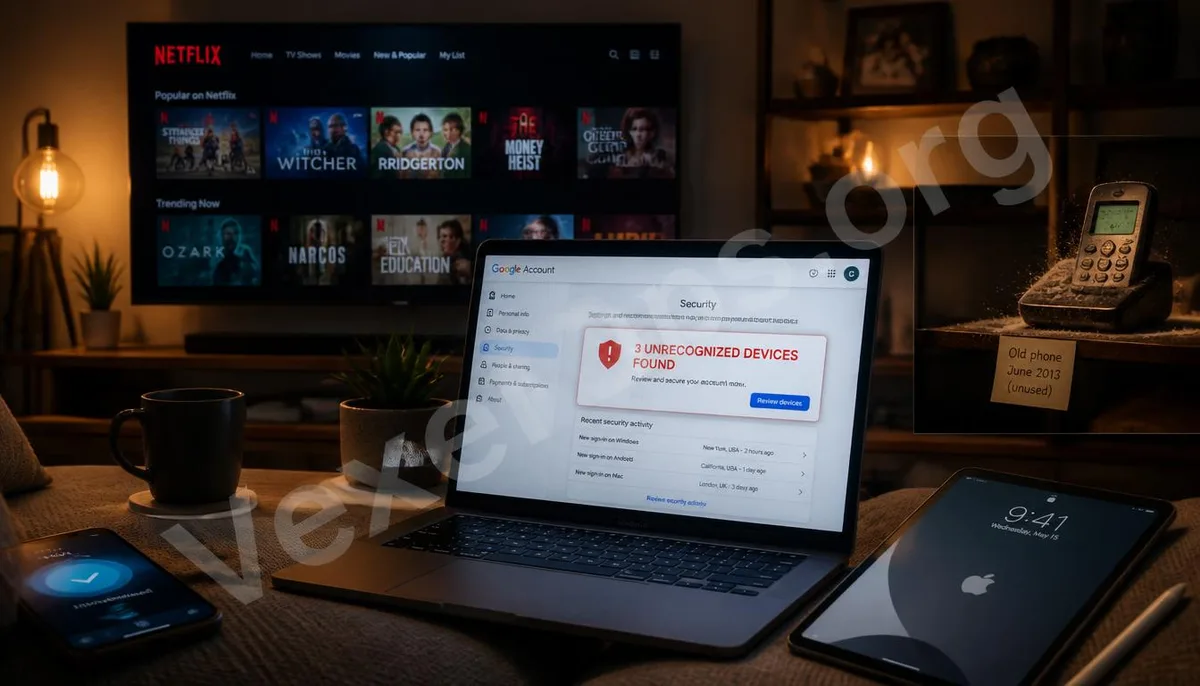
Your Account May Be Accessed by Devices You've Forgotten
Switching phones, changing computers, giving away old devices, or lending them to friends—these scenarios happen to most people throughout their account history. However, the login status of accounts does not automatically clear just because the device has changed ownership; unless you manually log out, that session may very well remain active. Regularly checking the list of active devices on your account is one of the simplest yet often overlooked aspects of account security management. Most major services provide this feature, but few know where to find it.
Device Management for Google Accounts
The device management entry point for Google accounts is at myaccount.google.com. Once entered, select Security, scroll down to find the Your Devices section, and click on Manage All Devices. This page displays a list of all devices currently logged into your Google account, including device models, operating systems, last active times, and approximate location information. For each device, you can click in to view detailed information and choose to log out from that device. If you see an unfamiliar device name, an unknown location, or a device you no longer use showing up in the list, you should log out immediately. Google also provides an option to log out of all devices in one go, available on the account security page. This action will force all devices to log in again, including the one you're currently using, so make sure you have your account password and access to two-step verification before proceeding.
Device Management for Apple ID
You can view the list of devices associated with your Apple ID in two locations. On an iPhone or iPad: Go to Settings, tap your name at the top, and scroll down to see a list of all devices currently logged into this Apple ID, including iPhone, iPad, Mac, Apple Watch, and Apple TV. Click on any device to view detailed information, including device model, serial number, and whether it's set as a trusted device. To remove a device from your account, choose Remove from Account at the bottom of the detail page. On a Mac: Go to System Preferences, click your Apple ID name at the top left, and you will find the device list and removal options. On the Web at appleid.apple.com: Once logged in, you can find categories of devices on the left side; this is how to manage your account without any Apple devices. After removing a device from the account, that device will no longer receive two-step verification codes from the Apple ID or access your data via iCloud.
Managing Login Activities on Facebook and Instagram
Both Facebook and Instagram belong to Meta, but each has its own independent login management interface. Facebook: Go to Settings & Privacy, select Settings, find Security and Login, and in the currently logged-in devices section, you can see all active sessions, including device types, browsers, locations, and times. Next to any record, you can click on the three-dot menu to select Log Out, forcing that session to end. There is also an option at the bottom of the page to log out of all sessions. Instagram: Go to Settings, select Account Center, find Where You’re Logged In in the Password and Security page, and you can view a list of all devices currently logged into Instagram. It also provides options to log out of individual sessions or all sessions.
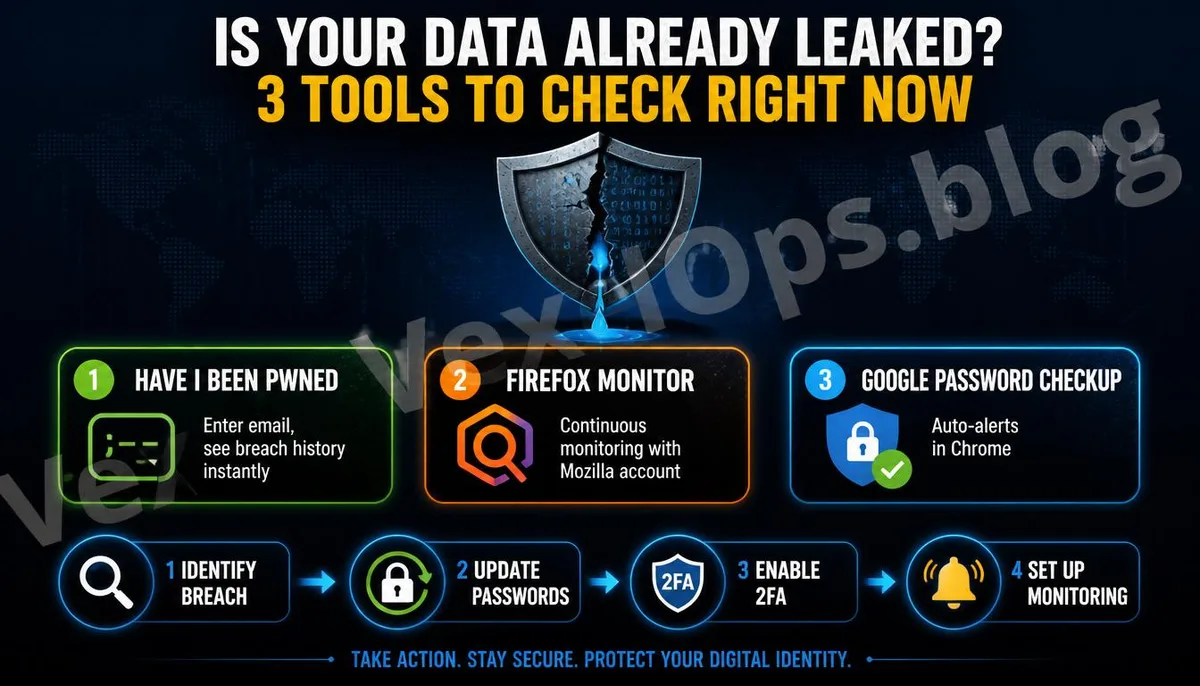
Device Management for Netflix
Managing your Netflix account is particularly important when using shared accounts, as many are unsure how many devices are concurrently using their account. How to Check: Log in to the Netflix website, go to Account Settings, find Security and Privacy, and select Manage Access and Devices. This page shows all devices that have accessed this account recently, including device names, locations, and last usage times. For any unfamiliar devices, you can click the log out option next to it to force a logout. Netflix also offers a feature to log out of all devices, found on the account settings page. This action will force all devices to log in again, usually used when suspecting that the account password has been compromised.
Spotify and Other Subscription Services
Managing account activity on Spotify can be done in the account settings on spotify.com, selecting Manage Your Devices, where you can see a list of all linked devices and choose to remove specific ones. For other subscription services, most provide similar device management features on the account settings security or privacy pages. A good habit to develop is to check the device list in your account settings before switching devices or canceling subscription services; this step only takes a few minutes but can prevent a lot of unnecessary troubles afterward. If you find long-time logged-in devices that you do not recognize during the check, in addition to logging out that device immediately, you should also check the login history of your account to understand when this device started accessing it, and whether any account settings were changed during the login period. VexelOps can help clarify such anomalous logins and the follow-up account security status that needs to be verified.
Frequently Asked Questions About Account Device Management
After logging out from a device, is the data on that device still there?
This depends on the nature of the service and how data is stored. For Google accounts, logging out from a device does not affect data stored in Google Drive; however, locally cached data on that device, such as offline emails from Gmail or synced files from Google Drive, will be unable to update until the device logs in again. For streaming services like Netflix, logging out simply revokes that device's access authorization, with no impact on the account's content itself. If you logged out from a stolen or lost device, any downloaded content on that device may still exist and will need to be handled through that device's remote wipe function, rather than just logging out at the account level.
There is a device in the list that I don't recognize, but the location shows near my home; is this normal?
Device names can sometimes display as model codes rather than friendly names, and location information is usually only accurate to a city or region. Thus, a device showing a name you are unfamiliar with but located near your home may just be one of your devices displaying under a different name. To determine this, check the last active time to see if it matches your usage habits and if the operating system and model of the device correspond with those of the devices you own. If you can’t match them to any of your devices, execute a log out and then check the recent login history of your account for any other abnormal signs.
What is the purpose of regularly conducting this check? Is it still necessary if my account hasn't been hacked?
Even if your account hasn’t been hacked, regularly checking the device list still has several practical values. First, it helps to understand the current usage status of your account and confirm that there is no unauthorized access happening without your knowledge. Second, it allows you to clear away old devices that are no longer in use; some services have limitations on the number of devices logged in simultaneously, and cleaning out old devices ensures this limit won’t cause problems when you need to log in with a new device. Third, it establishes a habit of periodically checking your account’s health status, making account security a proactive management issue rather than something you only address when a problem arises. Spending just ten minutes every few months to conduct a thorough device check is one of the most cost-effective and straightforward actions in account maintenance.
One Key Takeaway: The old devices and forgotten login sessions linked to your account are a risk that most people have never actively cleaned up. Regularly visiting the device management page of each platform to verify the list and logging out devices you do not recognize or no longer use is the simplest and most direct habit for account security management.