

Your Computer Remembers Every USB Drive Connected
Computers do not forget USB devices simply because they have been unplugged; most operating systems keep a record of connections in the background, including device names, manufacturer models, and even rough timestamps of when they were connected. If you suspect your computer has been connected to unfamiliar USB drives, external hard disks, or other devices, you can check this record yourself.
How to Check with Windows Device Manager
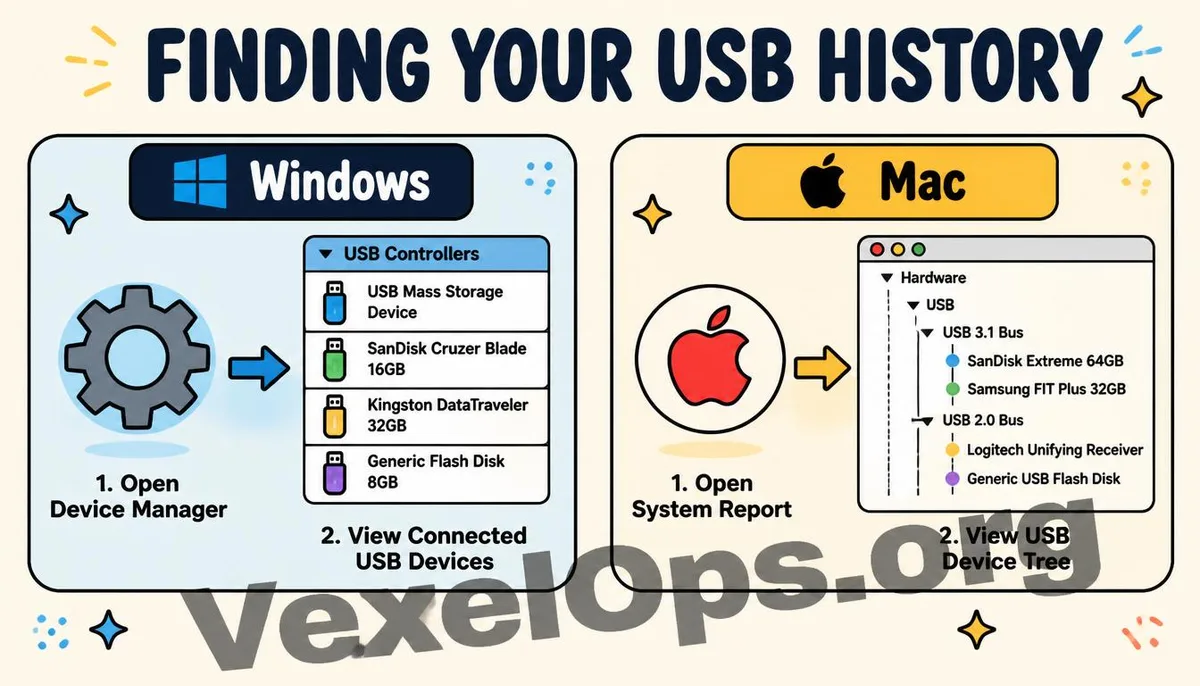
Type 'Device Manager' in the search bar and open it. Find the category for Universal Serial Bus controllers, expand it, and you will see both currently connected and previously connected USB devices. To see a more complete history, you can follow another path: in the Device Manager's view menu, select 'Show hidden devices.' This will list devices that have been removed and are currently not connected as well; these items are usually shown in a lighter gray to indicate they are offline, but the records are still retained. Click on any device, select properties, switch to the details tab, and in the property dropdown, choose 'Device instance path' to see the serial number information. If multiple records of drives with the same manufacturer model appear, it indicates that different physical devices have been connected to this computer.
USB Connection History in Mac System Information
The query path on Mac is relatively intuitive. Click the Apple icon in the upper left corner, select 'About This Mac,' and then click 'System Report.' Once inside, find the USB option under the Hardware category in the left sidebar. This page will display a tree structure of currently connected USB devices, including device names, manufacturers, serial numbers, etc. It is important to note that the System Report primarily presents the status of currently connected devices. For historical records of removed devices, the Mac system does not provide a direct graphical interface like Windows Device Manager does. To get more comprehensive historical records, you often need to use system logging tools for advanced queries.
How to Evaluate Unknown Device Records
If you find unfamiliar device names in the list, you can confirm from a few angles: - Do the device names and brands correspond to USB drives or external hard drives that you or your family/friends actually own? - Do the connection timestamps coincide with when you remember lending the computer or when it was out of your sight? - Is the same device appearing repeatedly in the connection records, or is there only a single instance? If, after investigation, you cannot match any known devices and the computer has shown other abnormal conditions recently, such as files being altered or unknown programs appearing, it is advisable to perform a full system scan with antivirus software to ascertain whether malicious programs may have been introduced through that USB connection.
Common Questions Users Ask About USB Connection Record Checks
Can This Record Show What Files Were Transferred?
No, built-in query tools like Device Manager and System Report only record connection information about the device itself, such as manufacturer model, serial number, and connection timestamps; they do not record the specific files that were actually transferred or accessed during connection. For detailed file access activities that occurred at specific times, you would need to use file access logs or more advanced auditing tools, which generally require that you had previously enabled the relevant auditing log functions to query detailed file operation records afterward.
Will Clearing Browser History or Restarting Clear USB Connection Records?
No, USB connection records are stored in the system's device configuration database, which is completely independent of browser history. Clearing browser data will not affect USB connection records. Restarting the computer likewise will not clear these records, as they are part of the device driver installation information and will remain stored in the system unless removed through specific system cleaning tools or manually uninstalling the device drivers.
If My Company Computer is Managed by an IT Department, Do I Still Need to Check This?
If the computer is issued by your company and managed by the IT department, most enterprises typically have more comprehensive device access control and auditing mechanisms in place, which are usually more thorough than personal queries through Device Manager. However, understanding how to check for yourself can still be valuable, especially if you suspect your computer has been borrowed by someone temporarily and you are concerned about security issues; you can do a preliminary check yourself and then decide whether to further contact the IT department for assistance.
One Key Takeaway: The computer does not forget the connection history when a USB device is removed. Through the Windows Device Manager or Mac system report, you can find a list of devices that were previously connected. Regularly checking this record can help detect unfamiliar device connections early.