
First, Confirm Your Windows Account Type
Before starting any recovery steps, the most crucial thing is to determine which type of account you are currently using, as the recovery methods for the two types are completely different. Windows 10 and Windows 11 support two main types of login accounts: one is a Microsoft account, which you log into using an email address and can sync settings and data; the other is a local account, which exists only on this computer and does not require an internet connection. If you see your email address on the login screen, it usually indicates that you are using a Microsoft account. If you only see a name without an email address, it could be a local account.
Password Reset for Microsoft Accounts
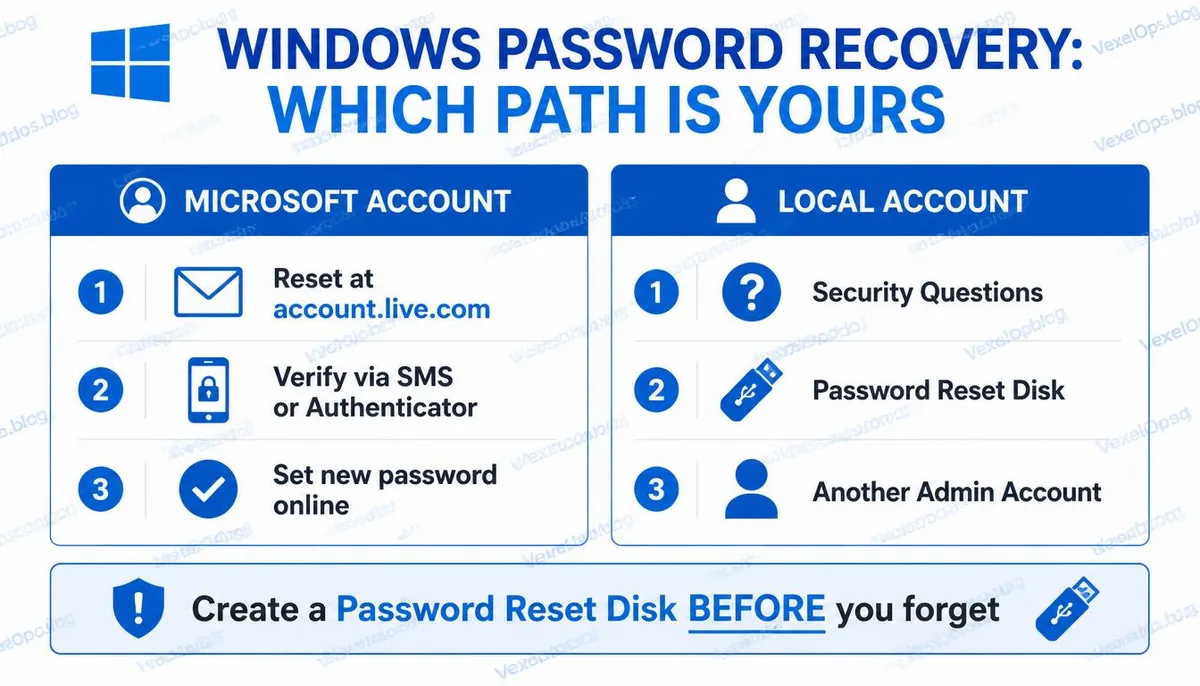
If you use a Microsoft account to log into Windows, the password reset can be completed entirely on another device or phone, without needing to operate directly on that computer. Steps are as follows: 1. On any device that can connect to the internet, go to account.live.com/password/reset 2. Enter your Microsoft account email address 3. Choose a verification method, such as receiving a code via backup email, SMS, or Microsoft Authenticator App 4. After verification, set a new password 5. Return to the computer you need to log into and use the new password to log in. If connected to the internet, the new password usually takes effect immediately. If that computer has not been connected to the internet after the password change, it may need to connect first to synchronize the account status before you can log in with the new password. Note that if both your backup email and phone number are unavailable, the recovery process will enter an identity verification stage, which requires answering account-related questions or submitting further identity verification information; this process may take a few days. This is why maintaining the recovery information for your Microsoft
Password Recovery Method for Local Accounts
The recovery of a local account's password relies more on the information you prepared during the account setup. Method 1: Security Questions If you set up security questions when creating your local account, this is the most straightforward recovery method. After entering the wrong password on the login screen, Windows will prompt you to answer the security questions; answering three questions correctly will allow you to set a new password. Method 2: Password Reset Disk If you created a password reset disk via the control panel while knowing your password, which is a USB drive that stores the account key, you can use this disk on the login screen to reset your password. A password reset disk needs to be created before you forget the password, which is a feature that many people discover only afterward. Method 3: Other Administrator Accounts If there is another account with administrator privileges on the computer, you can log into that account, access the account management page and set a new password for your forgotten account.
What to Do If You've Forgotten Your Windows Hello PIN?
Many users forget their PIN after setting up Windows Hello, rather than forgetting the password for their Microsoft account. The recovery methods for these two are different. On the login screen, select the option for PIN input; usually, there is a link below for when you've forgotten your PIN. After clicking it, Windows will require you to confirm your identity using your Microsoft account password or other verification methods, and once confirmed, you can set a new PIN. If you cannot remember your Microsoft account password at all, you need to follow the Microsoft account password reset process mentioned above before returning to set your PIN.
Create a Password Reset Disk While You Still Remember Your Password
A password reset disk is a feature that most people only discover when they need it. If you can still log into Windows normally, creating one now is a meaningful precautionary measure. Steps to Create: 1. Insert a USB flash drive 2. Type "create a password reset disk" in the search bar 3. Follow the wizard's steps to choose the USB drive as the save location 4. Once done, store this USB in a safe place. This disk does not become invalid simply because you change your password afterward; once created, it can be used for an extended period.
Frequently Asked Questions About Windows Password Recovery
What If My Local Account Didn't Have Security Questions Set or a Password Reset Disk?
In this case, the standard recovery methods provided by the official channels will no longer be available, leaving very limited options. Microsoft's official stance is that if a local account's password does not have a pre-set recovery method, it cannot be reset directly since the local account's data is not on Microsoft's servers, making it impossible to verify identity online. Some users in this situation choose to use Windows installation media for system reset, but this operation often affects personal data and applications on the computer, so the impact should be carefully evaluated before proceeding. If there is important data on the computer that needs to be preserved, it is advisable to consult an experienced technician before undertaking any system-level operations, rather than acting without understanding the consequences.
Can I Access a BitLocker Encrypted Drive After Resetting the Password?
This depends on whether you are using a Microsoft account or a local account, as well as how the BitLocker key is stored. If using a Microsoft account, the BitLocker recovery key is typically stored automatically in your Microsoft account and can be found at account.microsoft.com/devices/recoverykey. If using a local account, the storage location of the key depends on the backup method selected when enabling BitLocker, which might be stored on a USB drive, printed out physically, or already saved to a Microsoft account. It is extremely important to verify the location of the BitLocker recovery key before performing any operations that may affect drive access.
Does the Recovery Method for Mac Forgotten Password Work the Same as Windows?
The logic behind password recovery on a Mac differs from that on Windows and has its own procedures. If you logged into the Mac using an Apple ID, you can reset the password by restarting and entering macOS Recovery Mode, which requires verifying your identity using your Apple ID. If FileVault disk encryption is enabled, the location of the recovery key also needs to be verified. Password recovery on a Mac requires restarting the computer and pressing a specific key combination to enter Recovery Mode. The exact key combination varies by Mac model and chip type; Apple Silicon Macs need to long-press the power button, while Intel Macs press Command R during boot.
One Key Takeaway: Forgetting your Windows password is not the end of the world, but the difficulty of recovery directly depends on whether you prepared recovery options in advance while you still remembered the password. A backup contact method for your Microsoft account and a password reset disk for your local account are two preventive measures worth confirming now.